How to create a widget
Start with the job the widget should do, choose the information it needs, then turn it into a small surface you can reuse.
People often start with the question “How do I create a widget?” The better starting point is: what should this widget help me check or do repeatedly?
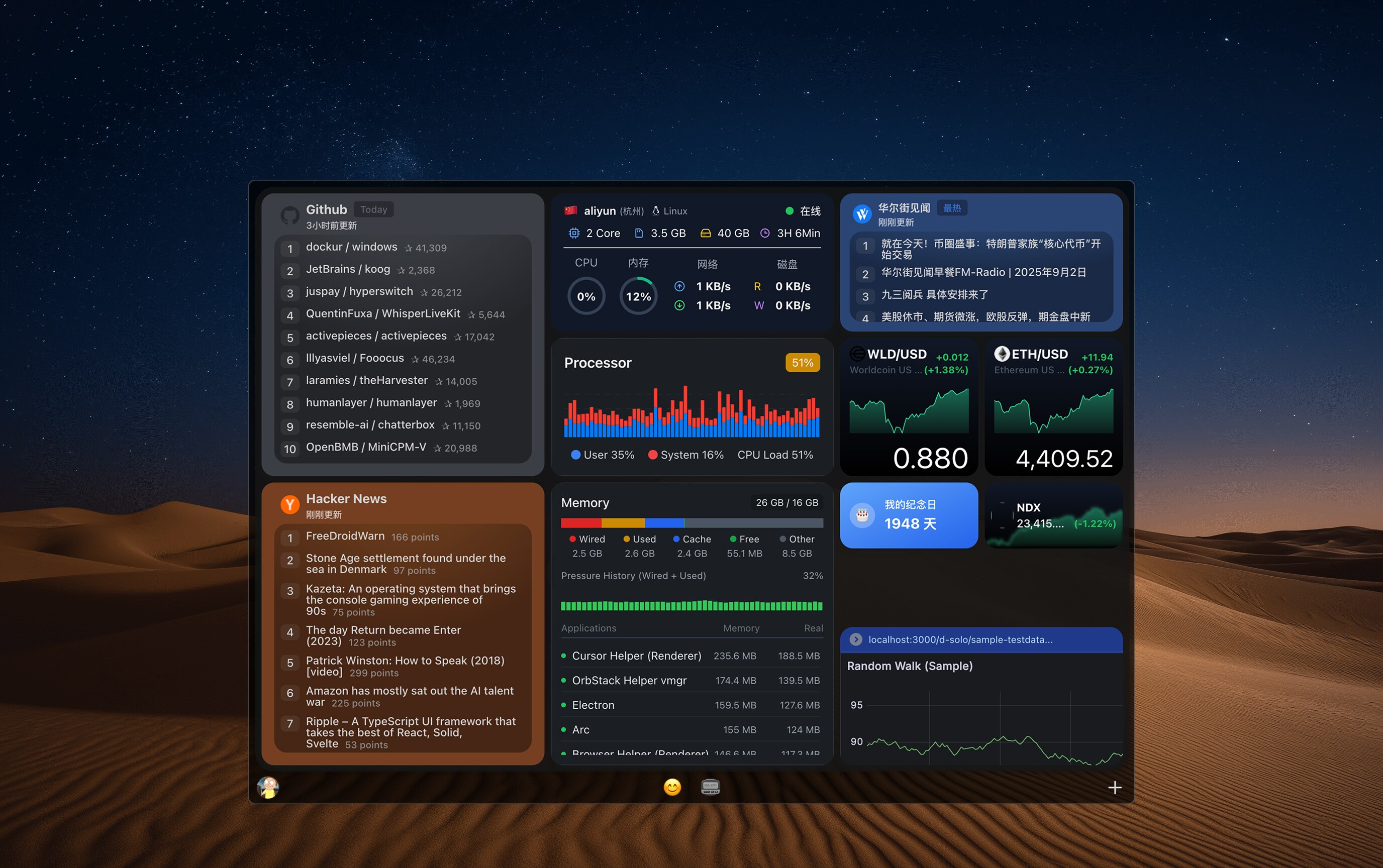
A useful widget has a narrow job. It might show one RSS feed, one GitHub repository, one website status, one market symbol, one task list, or one reusable AI text workflow.
The smaller the job, the more useful the widget. A widget should reduce a repeated action, not become another full app.
Define the widget job first
Write one sentence that explains the widget. For example: “Show the latest posts from this RSS feed,” “Tell me if this website is down,” or “Summarize this text with my usual prompt.”
If the sentence contains several unrelated jobs, split it into multiple widgets. Small widgets are easier to understand, arrange, refresh, and keep using.
Choose the source of information
Every widget needs a source: an app, a website, an RSS feed, an API, a status page, a local input, or a prompt. The source decides what the widget can show reliably.
For Kepo, the best first widgets are usually repeated checks: feeds, rankings, notifications, repository status, page availability, prices, tasks, or text transformations.
Decide what the widget should show
A widget should not show everything. Choose the few fields that answer the user’s question: title, status, time, price, count, owner, short summary, or the next action.
If the user needs deep reading, editing, or account management, the widget should link back to the original app or website instead of trying to replace it.
Create a widget with Kepo AI
In Kepo, you can describe the widget you want in plain language. A good request names the source, the exact thing to show, the layout, and any refresh or filtering behavior.
For example: “Create a desktop widget that shows the latest posts from this RSS feed, including title, source, time, and a short summary. Refresh it every 30 minutes.”
After the widget is generated, test it by asking whether it answers the original question quickly. If it does not, simplify the fields or narrow the source.
Widget creation FAQ
Do I need to code to create a widget?
Not always. If you use Kepo AI, you can describe the widget you need and let Kepo help create the desktop widget.
What makes a good widget?
A good widget answers one repeated question quickly. It should be small, readable, and connected to a clear source of information.
Can one widget do many things?
It can, but it is usually better to split unrelated tasks into separate widgets so each one stays clear and useful.
Start with the repeated action.
Keep the widget narrow.
Let the full app or website handle the deep work.