How to create a widget with AI
A useful AI-built widget starts with one repeated check: the feed, website, status, task, or text workflow you want to keep close.
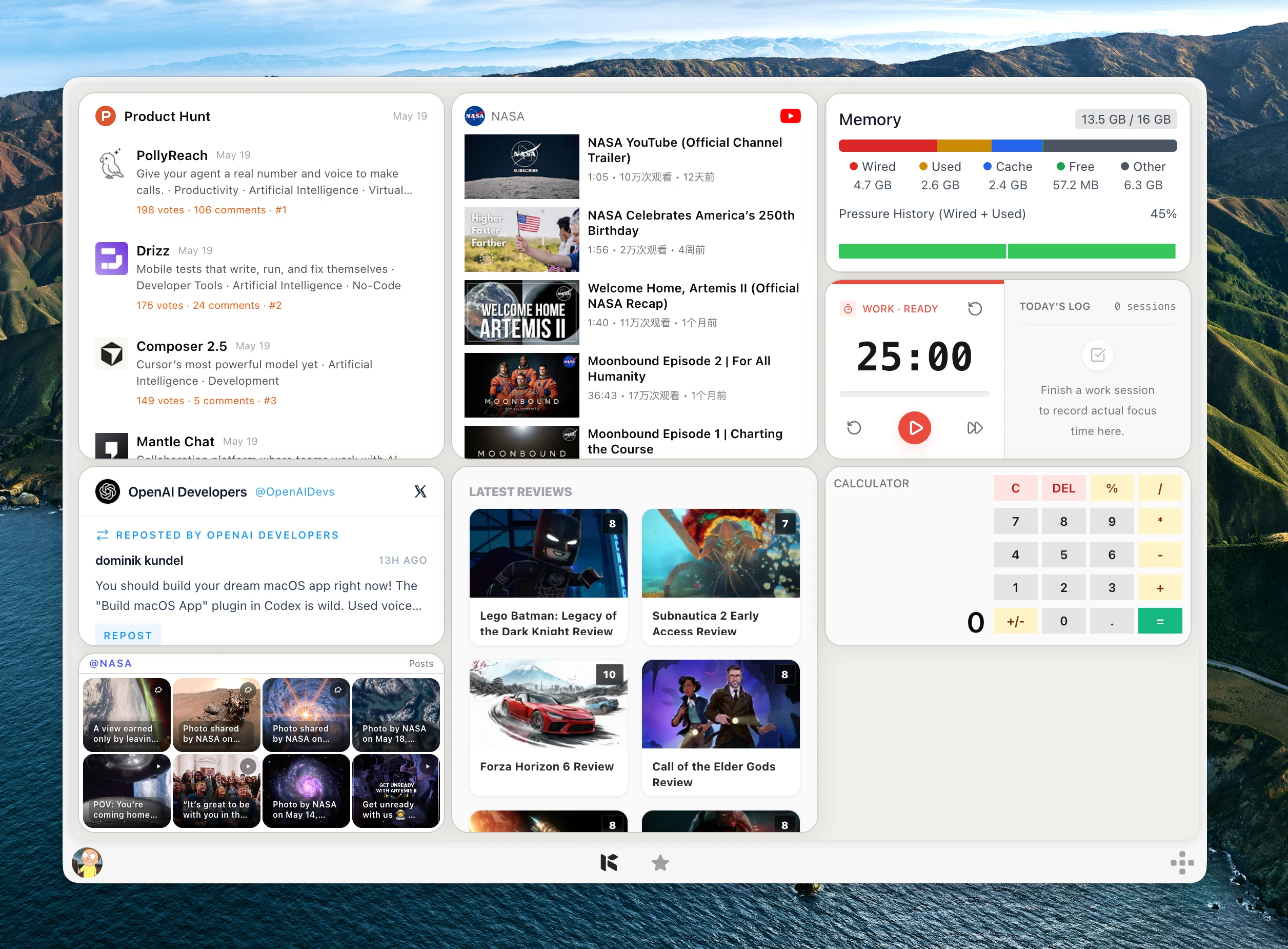
People often search for “How do I create a widget?” because they do not want another full app. They want a small surface that answers one repeated question.
Kepo AI is useful when that widget needs a custom source: one RSS feed, one GitHub repository, one website status, one market symbol, one task list, or one reusable text workflow.
The smaller the job, the better the AI-built widget. Describe one repeated check clearly, then refine the generated widget until it answers that check quickly.
Create it with Kepo AI
The smaller the job, the better the AI-built widget.
Key solutions at a glance The main decisions from this guide, condensed into one table.
Define the AI widget job first
Write one sentence that explains the widget. For example: “Show the latest posts from this RSS feed,” “Tell me if this website is down,” or “Summarize this text with my usual prompt.”
If the sentence contains several unrelated jobs, split it into multiple widgets. Small widgets are easier to understand, arrange, refresh, and keep using.
Give Kepo AI the source of information
Every widget needs a source: an app, a website, an RSS feed, an API, a status page, a local input, or a prompt. The source decides what the widget can show reliably.
For Kepo, the best first widgets are usually repeated checks: feeds, rankings, notifications, repository status, page availability, prices, tasks, or text transformations.
Describe what the generated widget should show
A widget should not show everything. Choose the few fields that answer the user’s question: title, status, time, price, count, owner, short summary, or the next action.
If the user needs deep reading, editing, or account management, the widget should link back to the original app or website instead of trying to replace it.
Generate the widget with Kepo AI
In Kepo, you can describe the widget you want in plain language. A good request names the source, the exact thing to show, the layout, and any refresh or filtering behavior.
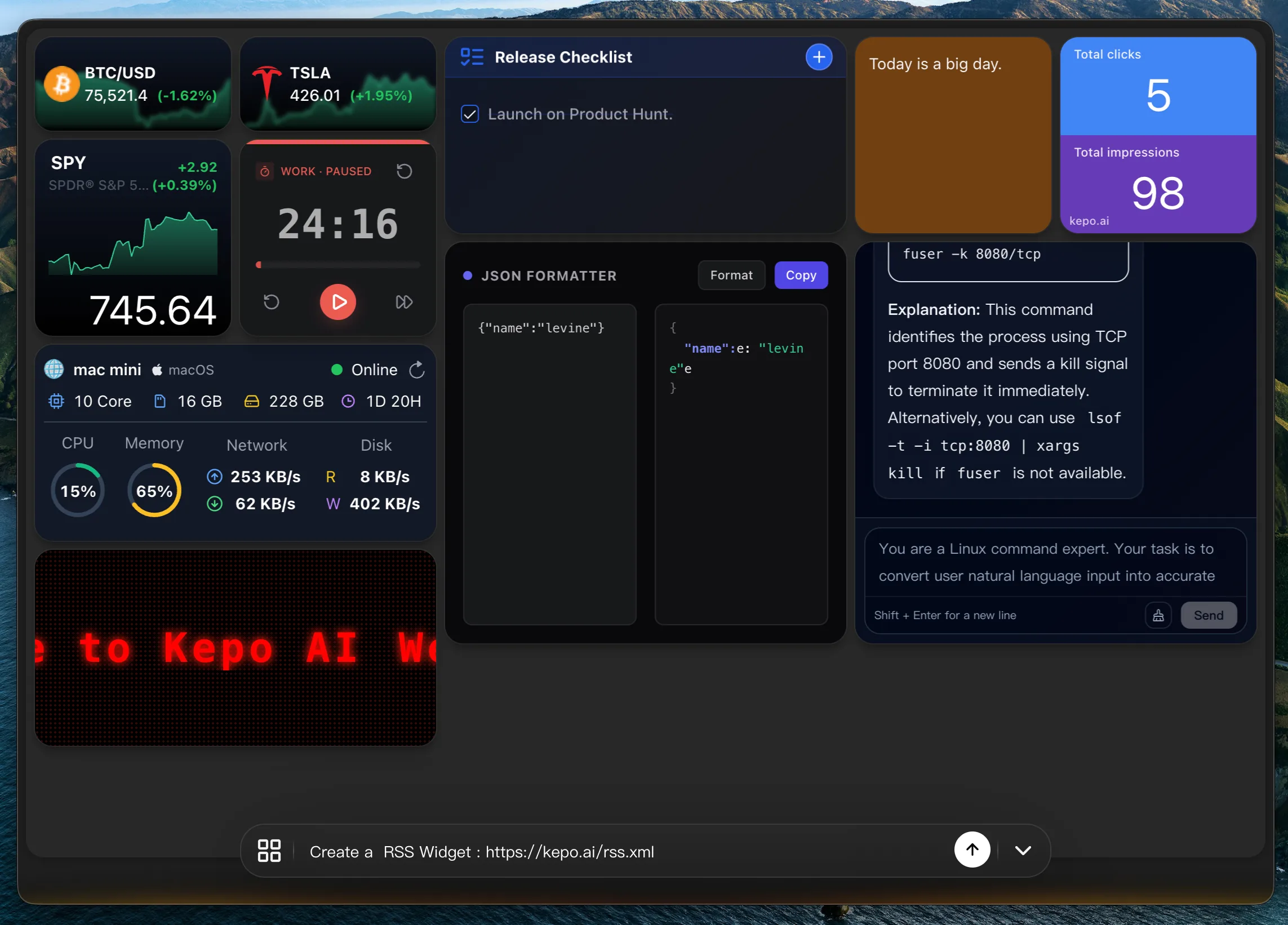
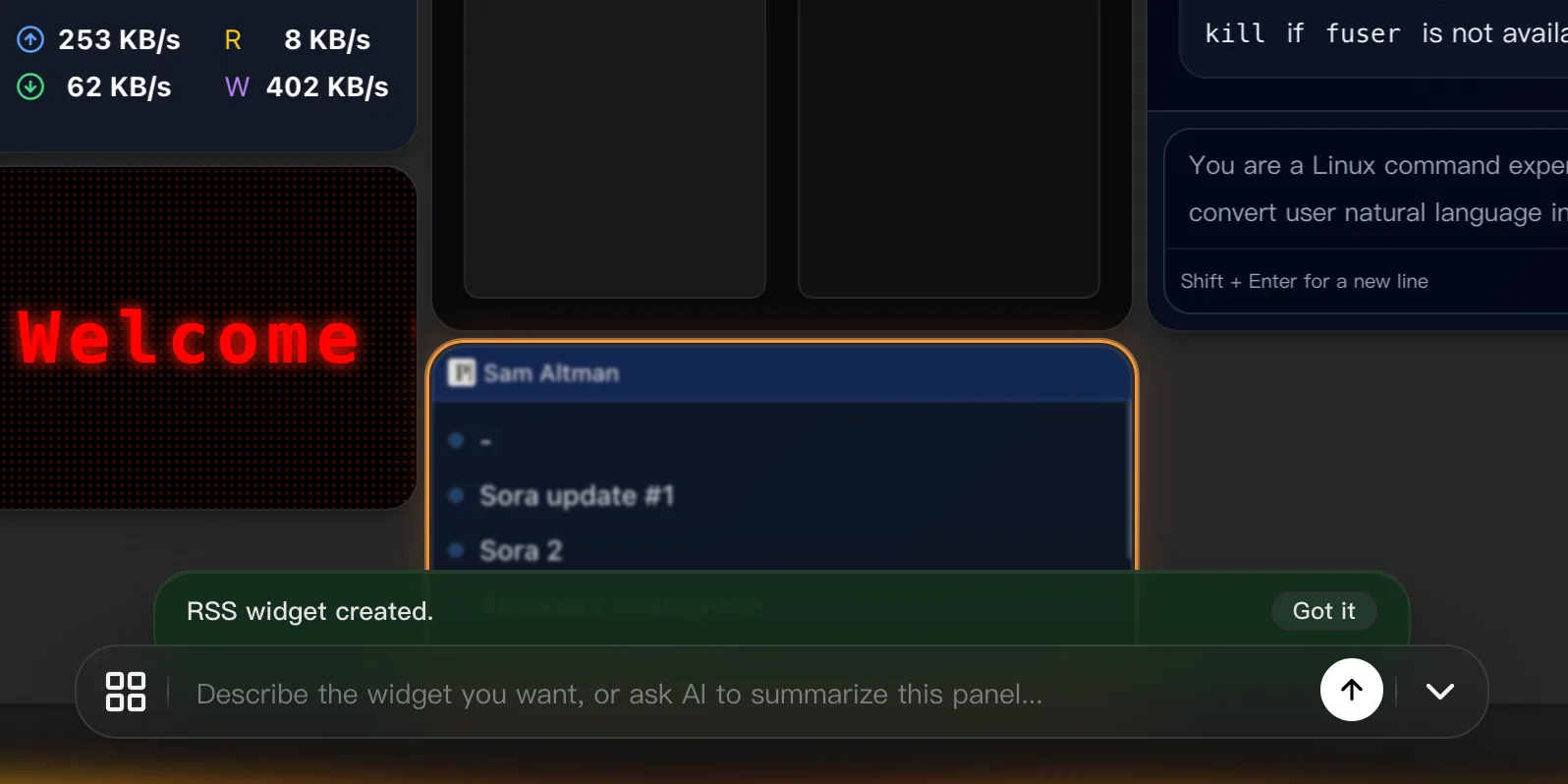
For example: “Create a desktop widget that shows the latest posts from this RSS feed, including title, source, time, and a short summary. Refresh it every 30 minutes.”
After the widget is generated, test it by asking whether it answers the original question quickly. If it does not, simplify the fields or narrow the source.
Widget creation FAQ
Can AI create a widget for me?
Yes. With Kepo AI, you can describe the source, fields, layout, and refresh behavior, then review the generated desktop widget.
Do I need to code to create a widget with AI?
Not always. Kepo AI can help create a widget from a clear natural-language request, especially for feeds, websites, monitors, and small workflows.
What makes a good widget?
A good widget answers one repeated question quickly. It should be small, readable, and connected to a clear source of information.
Can one widget do many things?
It can, but it is usually better to split unrelated tasks into separate widgets so each one stays clear and useful.
Start with the repeated action.
Keep the widget narrow.
Let the full app or website handle the deep work.
Stay informed with Kepo on your desktop
Embed interactive widgets, monitor dynamic sites, track APIs, and run ambient AI agents right on your macOS desktop.
Related Articles
View all posts →How to calculate days between dates and business days
Enter two dates to count calendar days, weekdays, and weekends. Check whether to include the end date, follow a worked example, and account separately for holidays.
How to find IP address on Mac: local vs. public IP explained
Learn how to find IP address on Mac across local network interfaces and public gateways. Master Terminal shortcuts, understand private vs. public routing, and pin live network widgets to your desktop.
How to crop an image on Mac: native tools and instant workflows
Crop an image on Mac with Preview or Photos, or try the center-crop tool on this page. Compare selection controls, aspect ratios, PNG export, and ways to preserve the original.
How to add widgets on Mac with AI-built custom widgets
A practical guide to adding widgets to the Mac desktop, using the built-in widget gallery, and creating custom widgets when the widget you need does not already exist.