How to add widgets on Mac with AI-built custom widgets
A practical guide to adding widgets to the Mac desktop, using the built-in widget gallery, and creating custom widgets when the widget you need does not already exist.
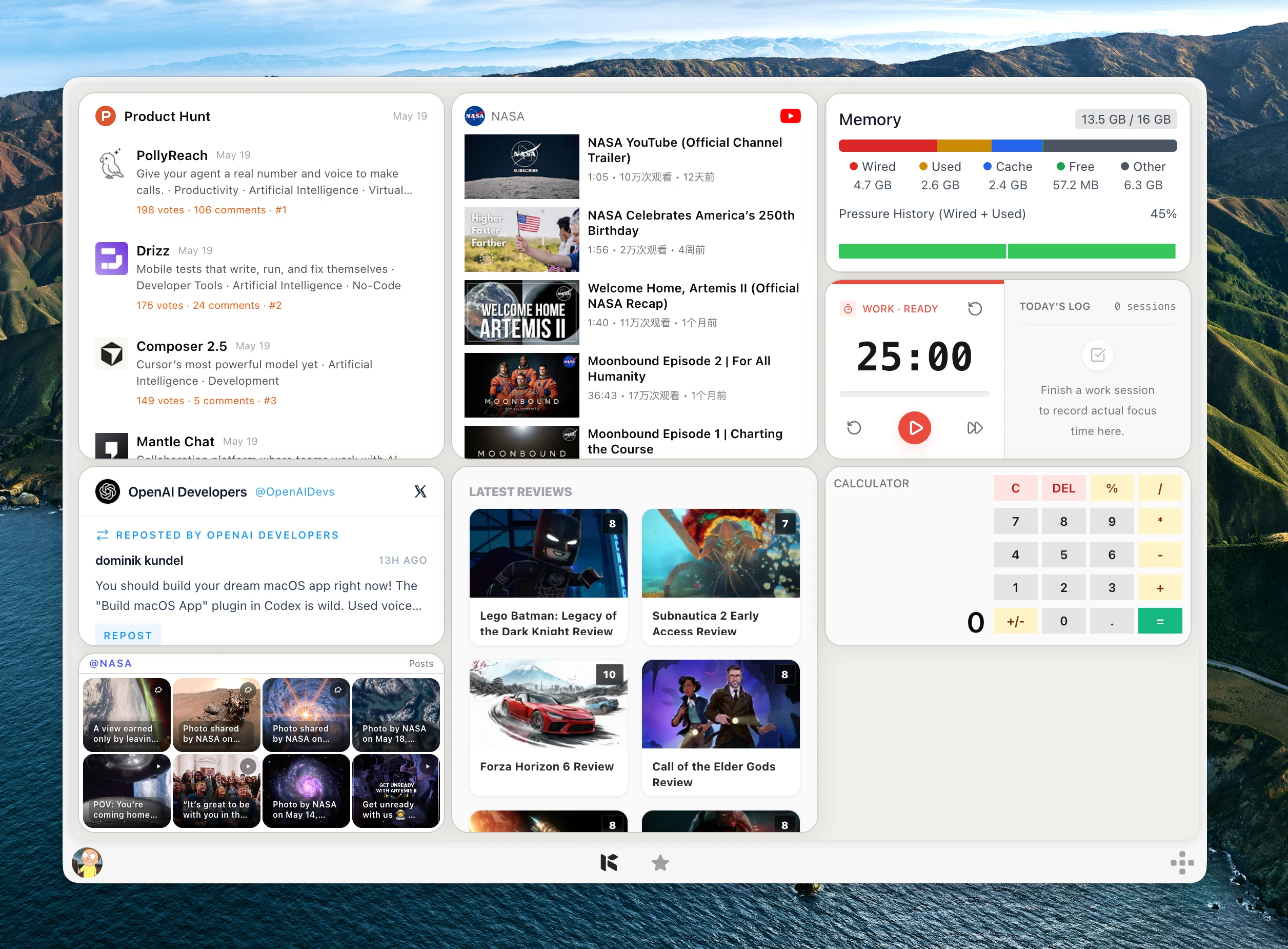
Mac widgets are useful when the thing you need is small: weather, calendar events, reminders, battery status, headlines, or a quick glance at an app.
The built-in macOS widget gallery is the right place to start. It lets you add supported widgets from Apple apps, Mac apps, and in some cases iPhone apps to the desktop or Notification Center.
The limitation is simple: the built-in gallery can only show widgets that already exist. Kepo is useful when the widget you want is a feed, website, monitor, or small workflow that is not already in the gallery.
Create it with Kepo AI
The limitation is simple: the built-in gallery can only show widgets that already exist.
Key solutions at a glance The main decisions from this guide, condensed into one table.
Add widgets to the Mac desktop
On recent macOS versions, start from the desktop. Control-click the wallpaper, choose Edit Widgets, then search or browse the widget gallery.
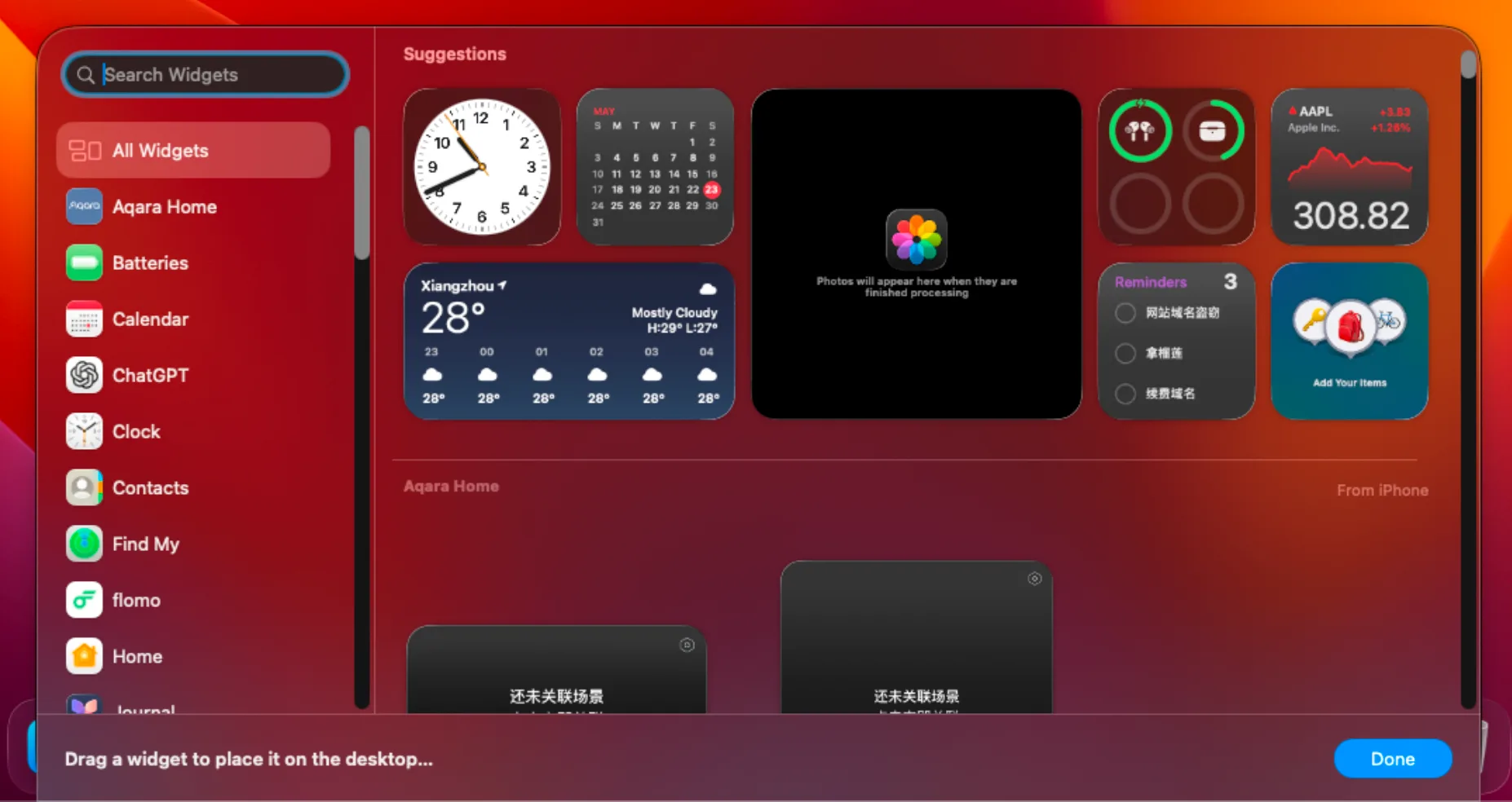
You can click a widget to add it automatically or drag it to a specific desktop position. When you are finished, click Done. If you want to move a widget later, drag it to a new position.
This works best for supported apps that already provide a widget, such as Calendar, Weather, Reminders, Batteries, or compatible third-party apps.
If you searched for “how to add widgets to Mac desktop” or “how to get widgets on Mac,” this is the native path to try first. It gives you app-backed widgets, but it does not create a widget from any website, RSS feed, GitHub page, Reddit thread, or custom workflow.
Add widgets to Notification Center
If you prefer to keep widgets hidden until you need them, open Notification Center from the menu bar, click Edit Widgets, and add widgets there instead of placing them on the desktop.
Notification Center is useful for lower-priority information. Desktop widgets are better when the information should stay visible while you work.
Use iPhone widgets on your Mac
Apple also supports iPhone widgets on Mac when your iPhone and Mac use the same Apple Account and meet the continuity requirements. You can enable this from Desktop & Dock settings, then add available iPhone widgets from the same widget gallery.
This is convenient, but it still depends on apps that already ship widgets. If the service, feed, or website you care about has no widget, you need a different approach.
When Kepo is a better fit
Kepo is for custom desktop widgets: RSS feeds, GitHub checks, social feeds, website status, server monitoring, market prices, small utilities, and AI-generated workflows.
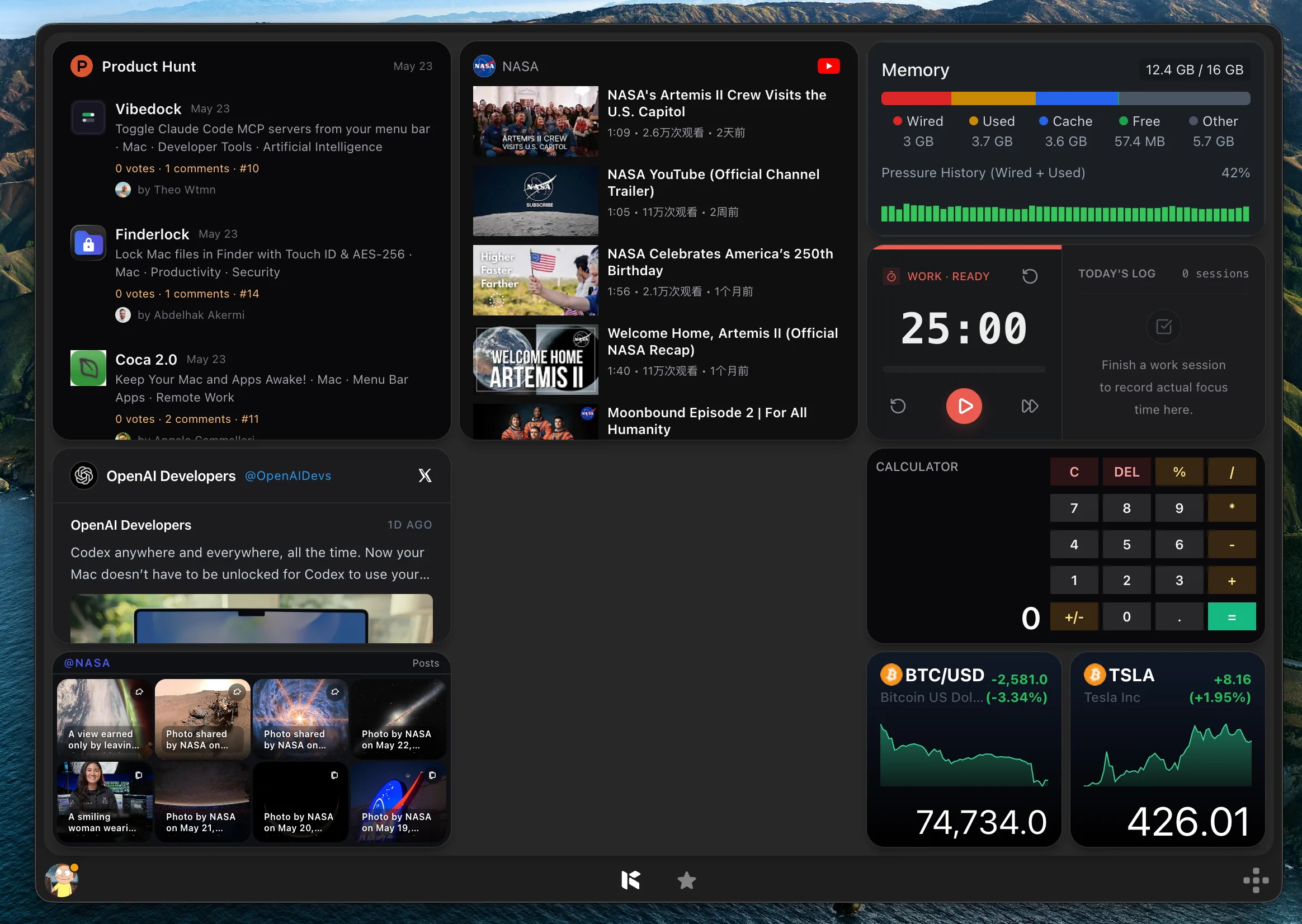
Instead of waiting for every website or tool to provide a native macOS widget, you can use Kepo to keep the repeated checks you care about in one desktop panel.
If your goal is a custom widget instead of a built-in macOS widget, these pages explain the Kepo approach in more detail.
What if the widget you want is not in the gallery?
The macOS widget gallery only shows widgets from apps that already support the native widget system. That is why a website, RSS feed, Product Hunt launch, GitHub release page, Reddit discussion, or internal dashboard often does not appear there.
Kepo handles that missing layer by turning repeated web checks into custom Mac desktop widgets. You still open the original website when you need full context, but the small signal can stay visible in a shortcut-ready panel.
Mac widget FAQ
How do I add widgets to my Mac desktop?
Control-click the wallpaper, choose Edit Widgets, then click or drag a widget from the widget gallery to the desktop.
Can I add widgets to a MacBook?
Yes. MacBook users can add supported widgets to the desktop or Notification Center on compatible macOS versions.
Can I create a widget that is not in the macOS widget gallery?
The built-in gallery only shows supported app widgets. For custom feeds, monitors, and AI-built widgets, use a dedicated tool such as Kepo.
Can I add a website as a widget on Mac?
Not with the built-in macOS widget gallery unless an app provides that widget. Kepo can create custom Mac desktop widgets from websites, RSS feeds, GitHub pages, Reddit threads, and other repeatable web sources.
What is the difference between Mac widgets and Kepo widgets?
Native Mac widgets come from apps that support the macOS widget system. Kepo widgets run in Kepo and are built for custom sources such as websites, feeds, monitors, and small tools.
Use macOS widgets when the widget already exists.
Use Kepo when the thing you want to watch, check, or reuse needs its own desktop surface.
Stay informed with Kepo on your desktop
Embed interactive widgets, monitor dynamic sites, track APIs, and run ambient AI agents right on your macOS desktop.
Related Articles
View all posts →How to calculate days between dates and business days
Enter two dates to count calendar days, weekdays, and weekends. Check whether to include the end date, follow a worked example, and account separately for holidays.
How to find IP address on Mac: local vs. public IP explained
Learn how to find IP address on Mac across local network interfaces and public gateways. Master Terminal shortcuts, understand private vs. public routing, and pin live network widgets to your desktop.
How to crop an image on Mac: native tools and instant workflows
Crop an image on Mac with Preview or Photos, or try the center-crop tool on this page. Compare selection controls, aspect ratios, PNG export, and ways to preserve the original.
How to create a widget with AI
A useful AI-built widget starts with one repeated check: the feed, website, status, task, or text workflow you want to keep close.