How to create custom desktop widgets on Mac
The best custom widget is not a tiny browser tab. It is the smallest view that answers something you check again and again.
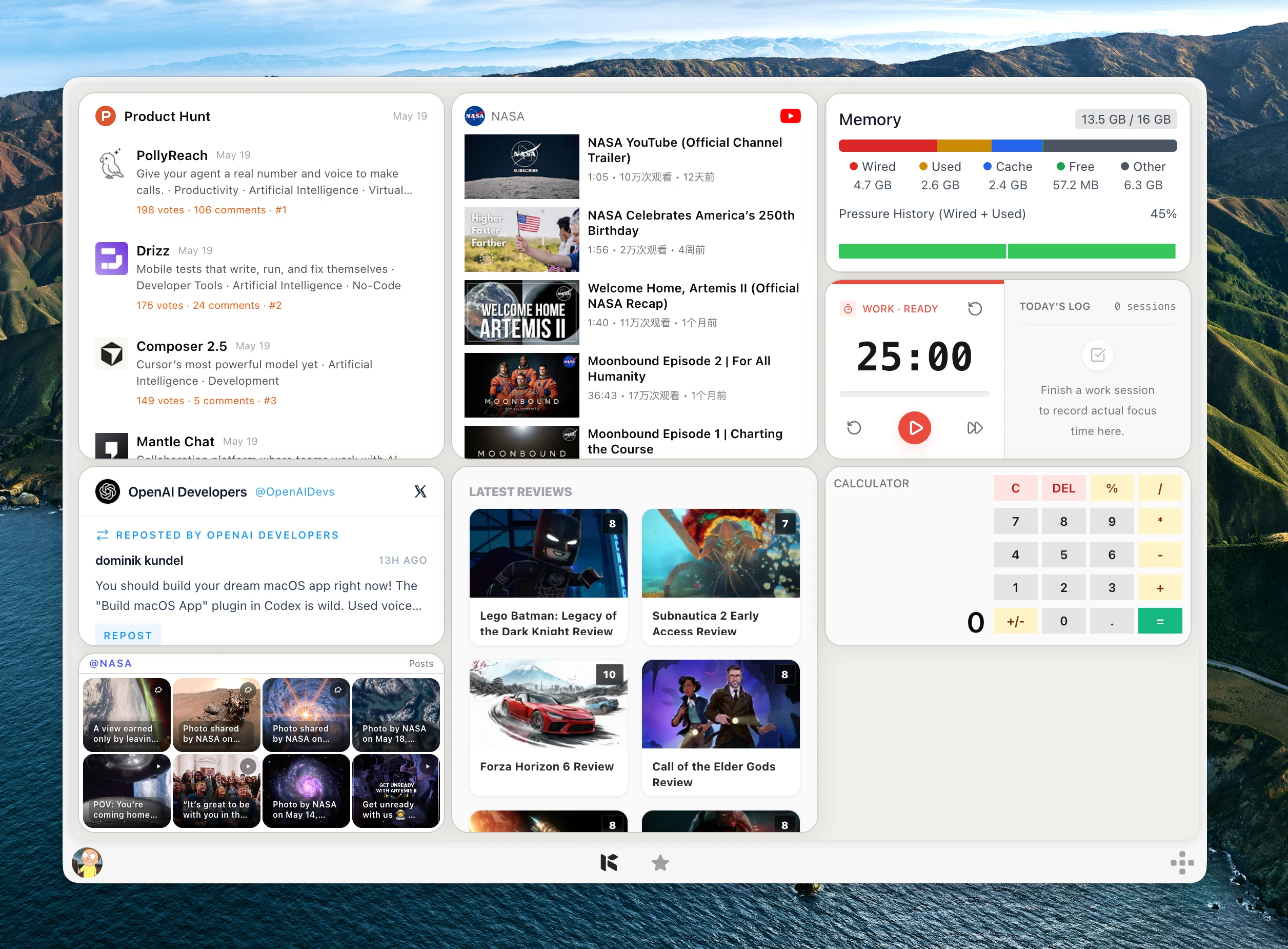
The Mac widget gallery is useful when the widget you need already exists. Calendar, Weather, Reminders, Batteries, and supported third-party apps all fit that model.
The gap appears when the source is yours to define: a web page, RSS feed, GitHub repository, status page, price, internal dashboard, or repeated text workflow. Those sources usually do not ship native Mac widgets.
Kepo is built for that gap. It helps you turn web pages, feeds, status views, and small workflows into desktop widgets you can keep in one shortcut-ready panel.
For Mac desktop widgets, the useful custom path is not decoration. It is turning one web page, feed, dashboard, or tool output into a small view that stays close to your work.
A useful custom desktop widget is not the whole website compressed into a box. It is a focused desktop view of the update, status, list, or signal you want to keep nearby.
Create it with Kepo AI
A useful custom desktop widget is not the whole website compressed into a box.
Key solutions at a glance The main decisions from this guide, condensed into one table.
Choose between built-in widgets and custom widgets
If an app already provides the widget you need, use the macOS widget gallery. That is the right path for supported Apple apps and third-party apps that already expose a native widget.
Use a custom widget when the information lives somewhere else: a website, an RSS feed, a status page, a GitHub view, a dashboard, a price page, or a workflow you normally repeat by opening a browser tab.
That distinction matters for searchers asking how to add widgets on Mac. Adding an existing widget and creating a new widget are different jobs. Kepo is for the second job: turning a source you care about into a small desktop view.
That is also where custom Mac widgets become useful: they give web pages, feeds, dashboards, and workflow outputs a focused place outside the browser.
Pick a source Kepo can turn into a widget
Start with the source of truth. It might be an RSS or Atom feed, a website page, a GitHub repository, a status endpoint, a product ranking, a market symbol, or a prompt-defined text workflow.
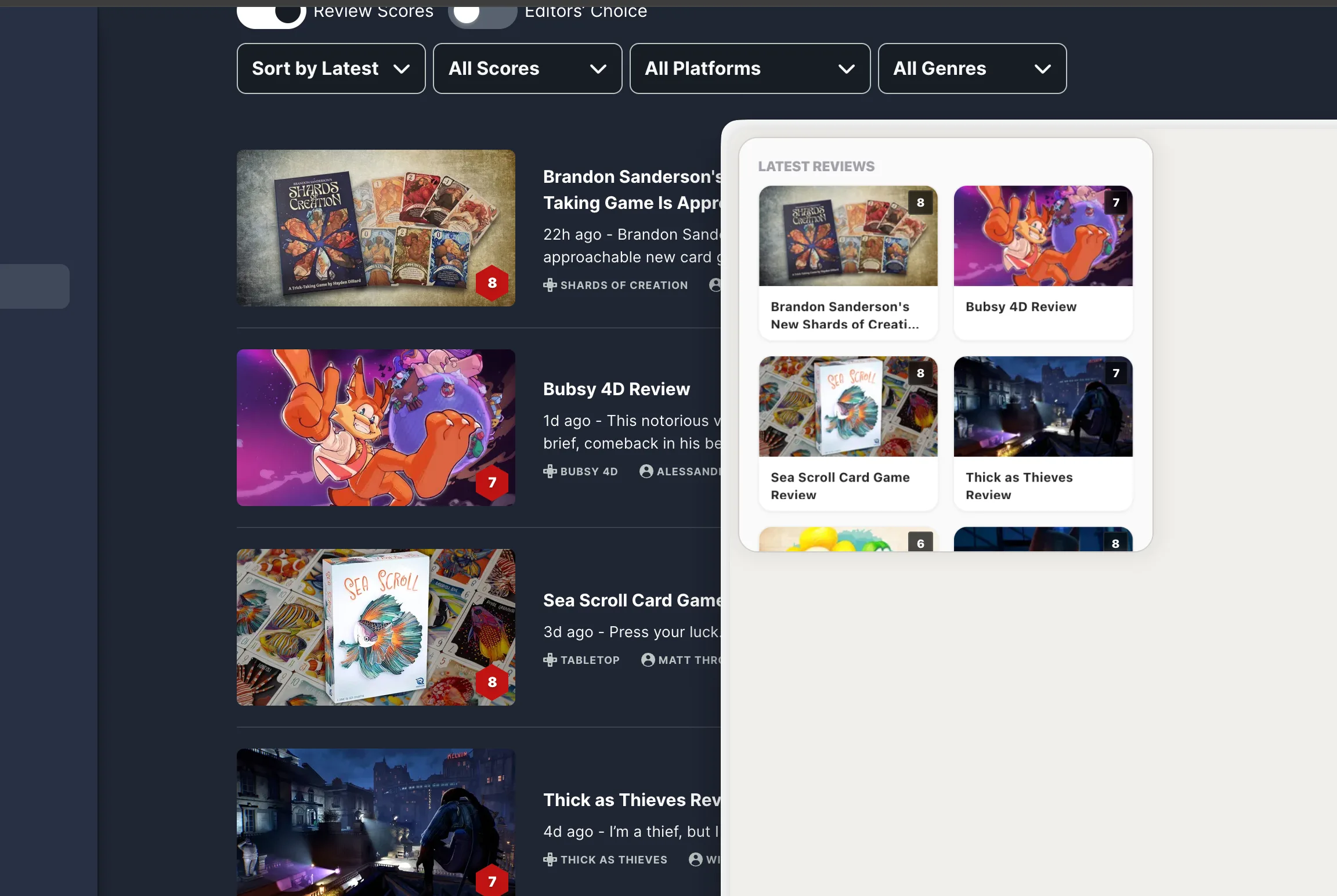
The source matters because it determines what the widget can refresh and what information can be shown reliably. A clean feed URL, a stable status page, or a clear repository view is easier to turn into a dependable widget than a page that hides the useful data behind several interactions.
If you want to turn a website into a desktop widget, do not ask Kepo to copy the whole site. Ask for the page element, feed item, status, table, or list you actually check.
For example, an RSS widget for Mac can show new items from one feed, while a website status widget can show availability and recent incidents from one status page.
Create the widget in Kepo
Tell Kepo what to show, where the data comes from, and how often the widget should refresh. Keep the request specific and small.
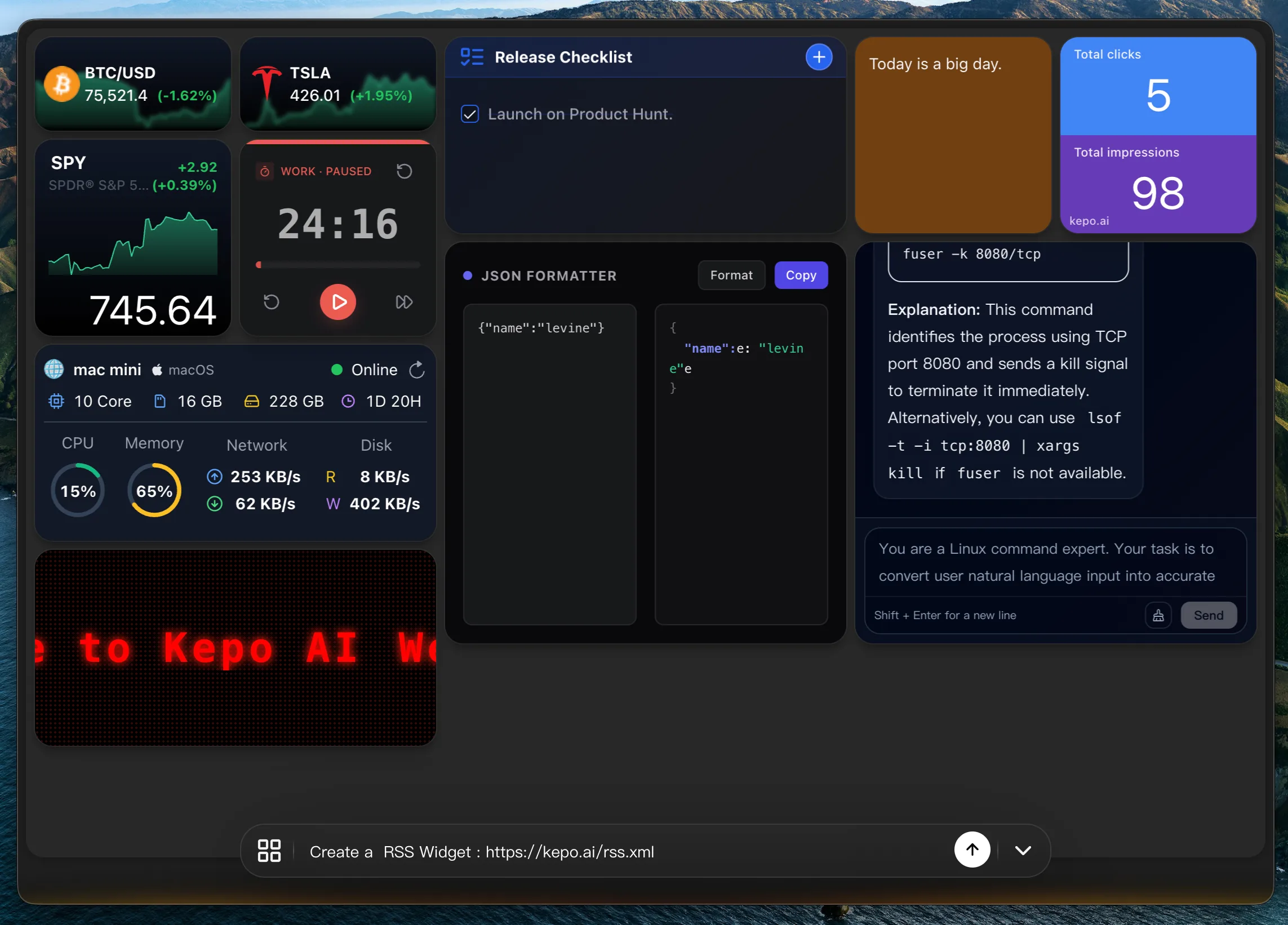
A good prompt includes the source, the fields to display, the layout, the refresh behavior, and what should happen when you click the widget.
For example: "Create a desktop widget from this status page. Show current availability, last checked time, and the last three incidents." That is more useful than "make this website a widget."
For a feed, ask for the title, source, time, and short summary. For a GitHub view, ask for the repository name, latest release, open issue count, or pull request status. For a price or monitoring widget, ask for the current value, trend, and last checked time.
Preview, simplify, and keep it useful
After Kepo creates the widget, check whether it answers the original question without making you open the full website or app.
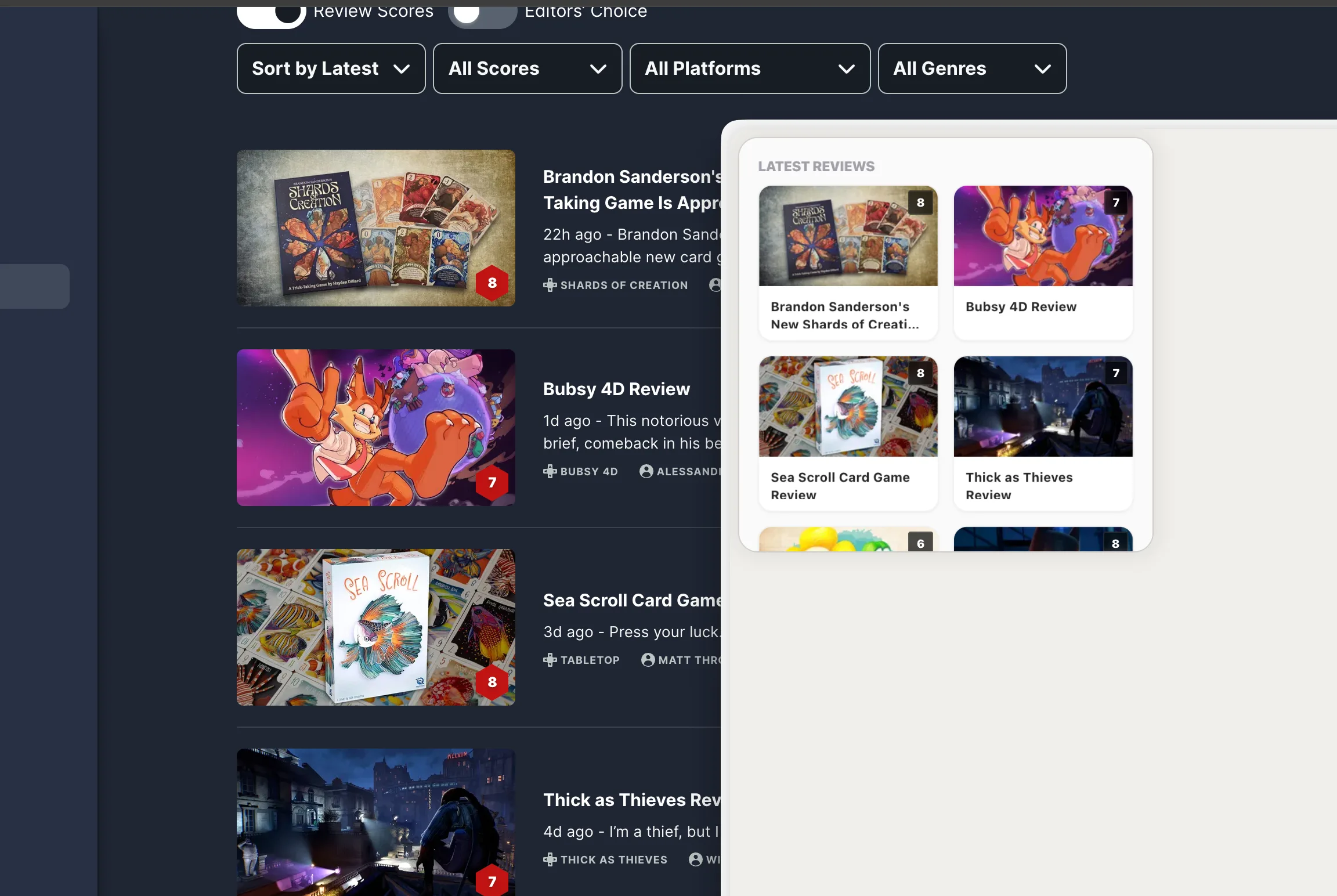
If the widget feels crowded, remove fields. If it feels vague, make the title, status, or next action clearer. If it does not change what you do during the day, remove it from the panel.
The point is not to create a new widget every day. The value comes when a widget stays useful after it is created.
Customize the widget after creation
A custom widget for Mac should stay easy to scan after it is created. Use Kepo to adjust the source, fields, layout, refresh timing, and click behavior until the widget answers one repeated question clearly.
This is where Kepo works more like a Mac widget customizer than a template gallery. The goal is not to decorate the desktop; it is to keep the source, update, status, or workflow you actually use close to your work.
Use built-in Mac widgets and Kepo widgets together
Use built-in Mac widgets for supported Apple and app information. Use Kepo for sources and workflows that are personal, specific, web-based, or not available in the widget gallery.
That gives each surface a clear job. Native widgets handle supported app summaries. Kepo handles custom feeds, websites, monitors, dashboards, and AI workflows that need their own small desktop view.
Custom desktop widget FAQ
Can I create a custom desktop widget on Mac?
Yes. Built-in macOS widgets are limited to supported apps, but Kepo can help create custom desktop widgets from feeds, websites, status checks, monitors, GitHub views, and prompts.
Can I create custom widgets for MacBook?
Yes. MacBook, MacBook Air, and MacBook Pro use the same Mac widget category. Use built-in widgets when the app already provides one, and use Kepo for custom widgets from feeds, websites, status pages, GitHub views, and workflows.
How to add custom widgets on Mac?
If the widget already exists, add it from the macOS widget gallery. If the widget needs a custom feed, website, monitor, dashboard, or AI workflow, create it in Kepo and keep it in a dedicated desktop panel.
How to customize widgets on Mac?
For built-in widgets, use the edit options the app provides. For custom Kepo widgets, adjust the source, fields, layout, refresh behavior, and prompt used to create the widget.
Can I turn a website into a desktop widget?
Yes, when the page has information that can be reliably extracted or refreshed. If you want to turn a web page into a Mac widget, focus on one clear source area, such as a feed, status, table, price, queue, or recent update list.
How to create a widget on Mac without code?
Use Kepo when the widget needs a custom source instead of an existing app widget. Describe the source, fields, layout, and refresh behavior, then preview the generated widget in your Kepo panel.
Do I need to code to make a custom Mac widget?
No. You can describe the widget you want in Kepo. More technical users can keep improving the widget when they need tighter control over data, layout, or behavior.
What is the best first custom widget to make?
Start with a narrow source that has useful updates, such as one RSS feed, one website status page, one GitHub release view, one price page, or one AI text workflow.
Built-in widgets are good when the widget already exists.
Kepo is useful when your widget needs a custom source, custom layout, or custom workflow from the web pages and tools you already check.
Stay informed with Kepo on your desktop
Embed interactive widgets, monitor dynamic sites, track APIs, and run ambient AI agents right on your macOS desktop.
Related Articles
View all posts →How to calculate days between dates and business days
Enter two dates to count calendar days, weekdays, and weekends. Check whether to include the end date, follow a worked example, and account separately for holidays.
How to find IP address on Mac: local vs. public IP explained
Learn how to find IP address on Mac across local network interfaces and public gateways. Master Terminal shortcuts, understand private vs. public routing, and pin live network widgets to your desktop.
How to crop an image on Mac: native tools and instant workflows
Crop an image on Mac with Preview or Photos, or try the center-crop tool on this page. Compare selection controls, aspect ratios, PNG export, and ways to preserve the original.
How to add widgets on Mac with AI-built custom widgets
A practical guide to adding widgets to the Mac desktop, using the built-in widget gallery, and creating custom widgets when the widget you need does not already exist.