Image Compressor
Reduce image file size by encoding a JPEG at a chosen quality, then compare the measured bytes. This tool accepts JPEG, PNG and WebP and outputs JPEG. It keeps pixel dimensions and fills transparency with white; it does not promise a fixed percentage saving.
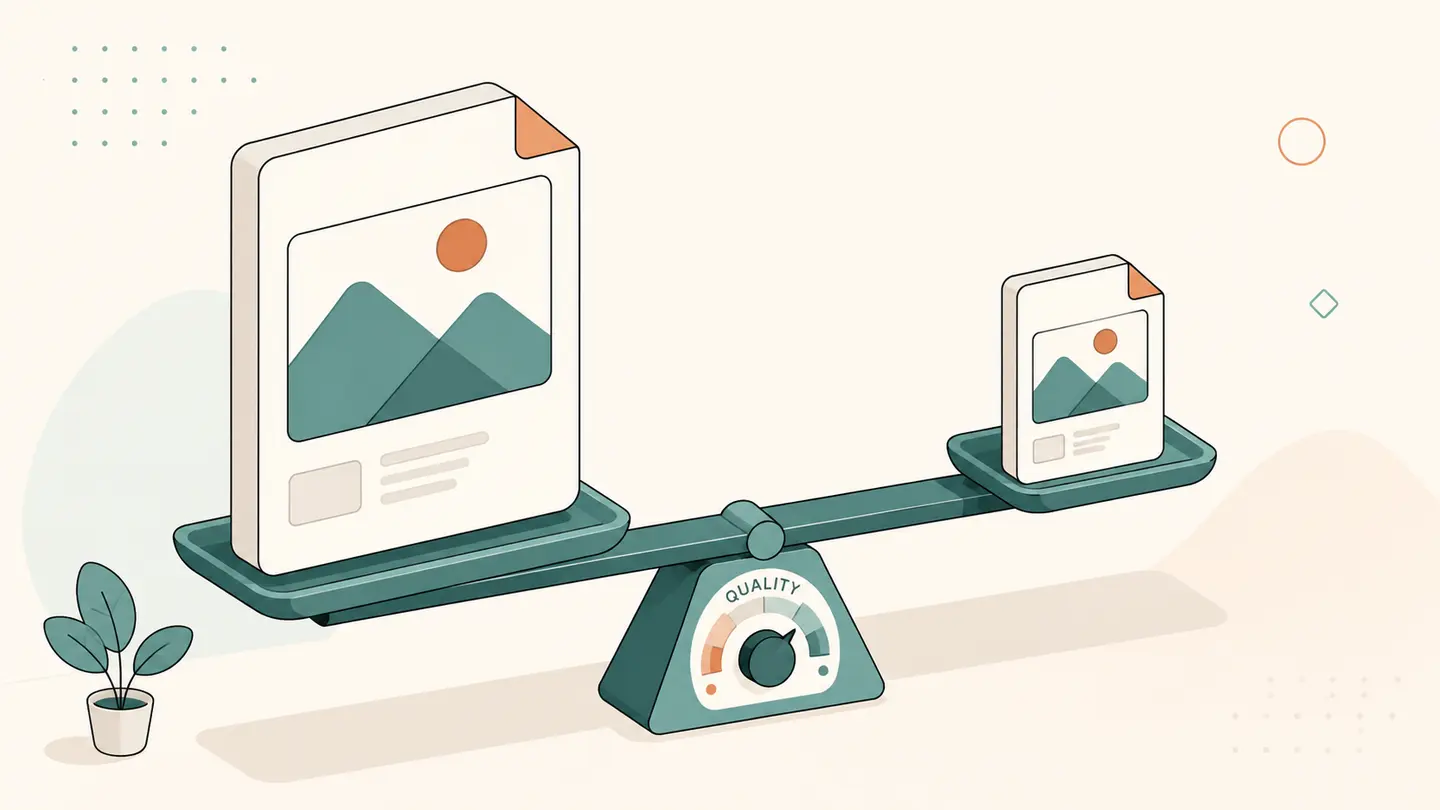
Reduce image file size by encoding a JPEG at a chosen quality, then compare the measured bytes. This tool accepts JPEG, PNG and WebP and outputs JPEG. It keeps pixel dimensions and fills transparency with white; it does not promise a fixed percentage saving.
Repeated JPEG saves can introduce additional artifacts. Work from the best available original when comparing settings, and keep that original. Transparency, original metadata and animation are not retained in the JPEG output.
Best solution
Reduce image file size by encoding a JPEG at a chosen quality, then compare the measured bytes.
Reduce image file size by encoding a JPEG at a chosen quality, then compare the measured bytes. This tool accepts JPEG, PNG and WebP and outputs JPEG. It keeps pixel dimensions and fills transparency with white; it does not promise a fixed percentage saving.
Choose a file to start. Nothing is uploaded.
Single still image. JPEG uses white behind transparency. Decoder notices

Opens the Kepo download page; this calculation or file is not transferred.
Key solutions at a glance The main decisions from this guide, condensed into one table.
Use the Online Tool
Choose the file and start at quality 82. Lower quality gradually while checking the preview. If the original is already JPEG and re-encoding is no smaller, the tool keeps the original bytes and says so. Other source formats still produce the requested JPEG, even when the result is larger.
Choose one file using the file picker. The control shows the accepted input format and limits. A filename alone is not enough: the tool checks image bytes and then asks a decoder to open them. A damaged file or unsupported encoding produces a visible error instead of a downloadable file with a misleading extension.
Click Process image after setting the controls. Wait for the processed preview and the measured dimensions and bytes. Changing an input clears the previous result, so an old download is not presented as if it belonged to new settings. While a conversion is in progress, the interface shows that state rather than displaying an invented percentage.
A Concrete Example
Two 1600 × 1200 photographs can compress to different sizes at the same setting because their detail differs. A flat sky is not as demanding as foliage or fine texture. Use the actual byte count shown after processing, not a size estimate based only on width and height.
| Property | This task |
|---|---|
| Output | JPEG |
| Dimensions | Preserved |
| Quality | Adjustable |
| Guaranteed saving | None; actual bytes shown |
Use a copy of a familiar image for your first check. A picture with text near an edge, a recognizable orientation and some fine detail makes changes easier to notice. Compare the downloaded file, not only its thumbnail, because a small preview can hide artifacts or a changed border.
What Changes in the Image
Compression and resizing are separate operations. This page changes JPEG encoding quality without deliberately changing dimensions. A target-size workflow may need both lower quality and smaller dimensions; use the dedicated 100 KB tool only when its additional resizing behavior is acceptable.
Pixel dimensions, encoding format and file size are separate properties. A file can keep the same dimensions and change size after encoding; a smaller pixel grid can still produce a larger file in another format. The component reports dimensions and actual bytes so you do not have to infer one property from another.
This workflow produces a single rendered still. It is not a multi-frame editor, an archival photo export or a metadata-preservation tool. Keep the original file when you need camera metadata, an animation, a depth image or the original color and HDR information. A successful download means the stated output was encoded, not that every source-container feature survived.
Check the Download Before Using It
Open the download in the application that will receive it. Confirm the file format, dimensions, orientation and visible background. If the destination has a byte limit, compare the exact byte count rather than relying on a rounded “KB” label. A requirement can also include minimum dimensions and an accepted-format list.
Repeated JPEG saves can introduce additional artifacts. Work from the best available original when comparing settings, and keep that original. Transparency, original metadata and animation are not retained in the JPEG output.
Do not overwrite the only copy of a source image. The download receives a new filename ending in -kepo and the actual output extension. If you compare multiple settings, retain enough of the input and setting information to reproduce the preferred version. Repeated lossy saves from already modified copies can make comparison less reliable.
Privacy, Limits and Failure States
The image-processing code does not upload the selected file. Decoding, drawing and encoding run on your device, and the download is a browser-created local object URL. The page and any required decoder code still need to load normally; local file processing does not mean the website itself makes no network requests.
Files must be non-empty and at most 20 MB. Decoded images and output canvases are limited to 24 megapixels, with no side larger than 16,384 pixels. These checks reduce excessive memory use but cannot guarantee that every device will handle every file below the limits. Large or complex HEIC files can require substantial memory while decoding.
If decoding fails, try a known supported still image or export the source from an application that can open it. If encoding is unavailable, the tool does not silently substitute another output format. A failed run clears the previous result. The original file on disk is not changed by the attempt.
Use It in a Repeatable Image Workflow
For occasional edits, this browser tool can provide a quick, local step before sharing an image. For repeated work, keep an original, record the required output dimensions and format, and check one finished sample in the actual destination before repeating the operation across more files.
Kepo offers Mac desktop widgets and small personal workflows. The download link opens the app download page; it does not import your image, transfer this page’s settings or create an image-processing widget automatically. This online result remains a separate downloaded file.
Related image tasks and desktop workflows.
Sources and Implementation Notes
The browser encoder contract and HEIC decoder documentation describe the capabilities used here.
Frequently Asked Questions
Is my image uploaded?
The processing code runs locally and does not upload the selected image. The website and decoder code still load over the network.
What format do I download?
This page produces JPEG. The preview and download refer to the actual encoded result, not a renamed input file.
Does this preserve every feature of the original?
No. This is a single-still, rendered-pixel workflow. Preserve the original if you need animation, original metadata or other container-specific information.
Keep the original, inspect the actual download and match the output to the destination’s real requirements.
Stay informed with Kepo on your desktop
Embed interactive widgets, monitor dynamic sites, track APIs, and run ambient AI agents right on your macOS desktop.
Related Articles
View all posts →How to crop an image on Mac: native tools and instant workflows
Crop an image on Mac with Preview or Photos, or try the center-crop tool on this page. Compare selection controls, aspect ratios, PNG export, and ways to preserve the original.
HEIC to JPG
Convert a HEIC still image into a real JPEG file locally in your browser. Select the HEIC file, choose a quality setting, process it and download the JPEG. The converter decodes the source before encoding the output; changing the filename extension alone would not perform this conversion.
HEIC to PNG
Decode a HEIC still image and save its browser-rendered pixels as PNG. Choose a HEIC file, process it and download the actual PNG. This is useful when a workflow specifically requires PNG, but it is not a way to recover detail already lost in the original image.
WebP to PNG
Convert a WebP still image into PNG in your browser. PNG can preserve transparency in the decoded bitmap, but this tool exports a single still image rather than an animated sequence. Select the WebP file, process it and check the downloaded PNG.