Aspect Ratio Calculator
Enter pixel dimensions to reduce their ratio and calculate a proportional size without uploading a file.
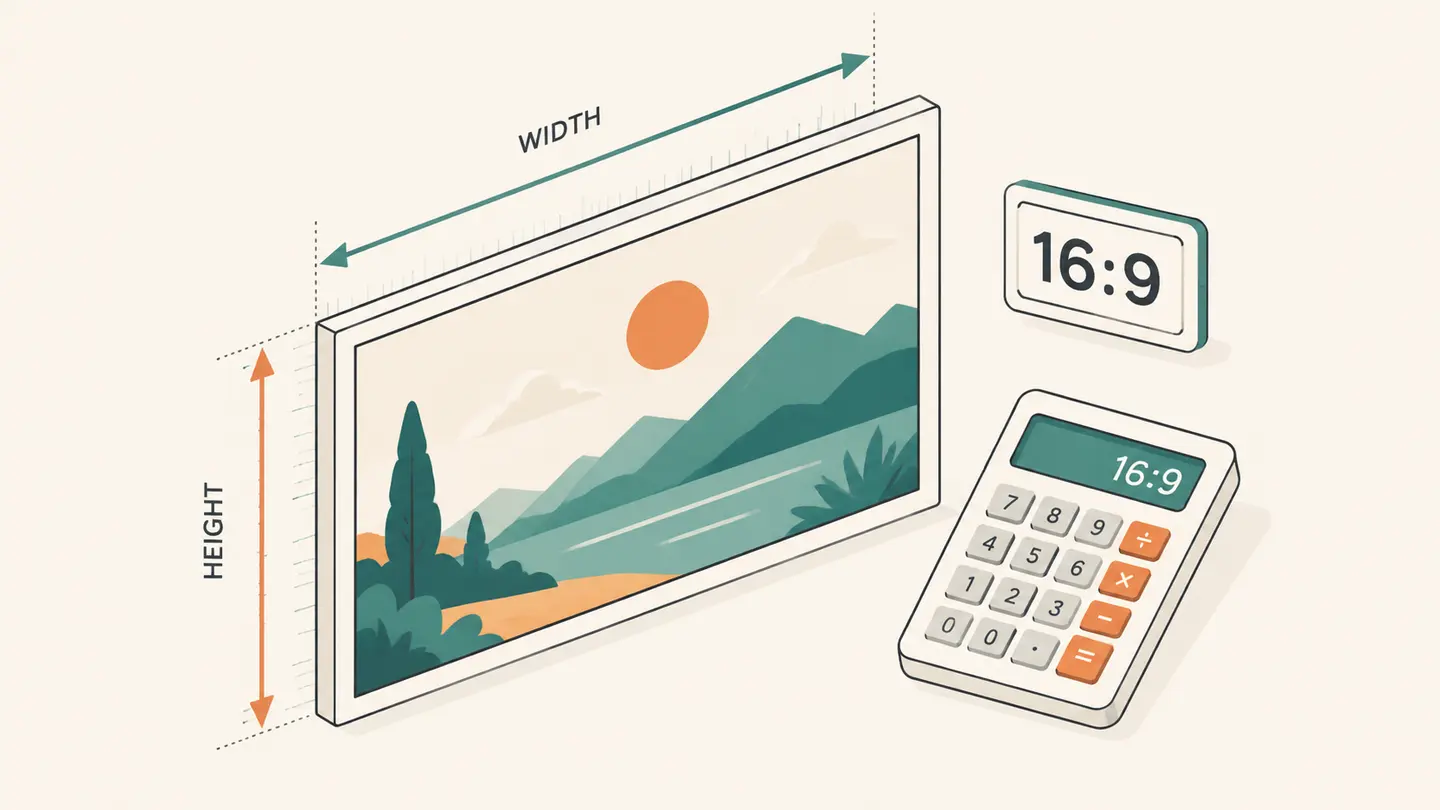
An aspect ratio is width compared with height. Enter whole-pixel dimensions to simplify that ratio, then choose a new width to calculate a matching height. This page calculates numbers locally; it does not resize or crop an uploaded image.
1920 × 1080 simplifies to 16:9. At a width of 1280 pixels, the proportional height is 720 pixels.
Best solution
An aspect ratio is width compared with height.
Whole-pixel input, simplified ratio and proportional height rounded to the nearest pixel.
Height rounds to the nearest pixel. This calculates dimensions; it does not edit a file.

Opens the Kepo download page; this calculation or file is not transferred.
Key solutions at a glance The main decisions from this guide, condensed into one table.
Calculate the Ratio
Enter the current width and height as positive whole numbers. The tool divides both by their greatest common divisor to express the same proportion with the smallest whole-number pair. The original pixel count is not changed by simplifying the notation.
Enter a new width to calculate a proportional height. The result rounds to the nearest whole pixel because a raster file cannot have a fractional row of pixels. The ratio can therefore differ very slightly after rounding, especially for small output dimensions.
For a small icon, examine the rounded pair before exporting. A mathematically proportional height can round below one pixel when the requested width is tiny compared with a very wide source. Such a result is not a usable raster size. Increase the target width or choose a different composition instead of trying to export a zero-height image.
Worked Example: 1920 × 1080
The greatest common divisor of 1920 and 1080 is 120. Dividing both sides by 120 gives 16 and 9, so the simplified ratio is 16:9. Dividing width by height also gives approximately 1.7778; this decimal is another representation, not a new image size.
To keep the proportion at width 1280, multiply 1280 by 1080 / 1920. The answer is 720. The resulting 1280 × 720 image has the same 16:9 ratio, but fewer total pixels. Keeping a ratio does not keep the original amount of image detail.
| Dimensions | Simplified ratio | At new width 1000 |
|---|---|---|
| 1920 × 1080 | 16:9 | 1000 × 563, rounded |
| 1200 × 900 | 4:3 | 1000 × 750 |
| 1000 × 1000 | 1:1 | 1000 × 1000 |
| 900 × 1200 | 3:4 | 1000 × 1333, rounded |
Ratio Is Not Resolution or File Size
A 1920 × 1080 image and a 3840 × 2160 image are both 16:9, but the second has four times as many pixels. The ratio describes shape. Resolution describes the dimensions of the pixel grid. File size depends on encoding and image content as well as that grid.
A square icon and a square photograph can both be 1:1 while using very different pixel dimensions and byte counts. Do not use an aspect-ratio result as proof that a file meets a platform’s minimum resolution or upload-size limit. Check those properties separately.
Width-to-height order matters. A landscape 16:9 image becomes a portrait 9:16 image when the axes exchange. Writing the larger number first regardless of orientation would erase an important property of the intended frame.
Resize, Crop or Pad
If source and destination have the same ratio, proportional resizing can fit the frame without cropping or borders. If they differ, you must choose a composition rule. Crop removes some source content, Pad preserves the full picture inside a larger canvas, and Stretch changes object proportions.
For example, a 4:3 photograph cannot fill a 16:9 frame while preserving all content and all proportions at once. A centered crop removes top and bottom content from the 4:3 source. Padding instead leaves unused space at the sides of a full-frame 16:9 canvas. Stretching fills the frame but changes shape.
The calculator does not decide which option is appropriate for the subject. A centered portrait, a text-heavy screenshot and a product photograph can require different choices. Inspect the actual resized or cropped result in an image tool before publishing it.
Avoid Common Input Mistakes
Use the pixel dimensions of the actual source file, not the width and height of a thumbnail on a web page. A thumbnail can be cropped, padded or displayed in a responsive box that does not match the underlying image. File properties or a trusted image editor can show the actual dimensions.
Do not mix units. If width is entered in pixels and height in centimeters, the simplified numbers have no useful geometric meaning. Both inputs need the same unit. This component labels its workflow in whole pixels, which also makes the rounding rule explicit.
Check the copied result after changing an input. The copy confirmation resets on edits so an older clipboard operation is not presented as a copy of the current calculation. The calculator does not store a history or update a file on your behalf.
From Calculation to a Usable Asset
Once you know the ratio and destination size, perform the actual image operation in a tool with explicit fit controls. Save a new file and verify its dimensions in the application where it will be used. A correct calculation is one step in the workflow, not a replacement for checking the exported asset.
Keep a small note of recurring image requirements: dimensions, ratio, format, background behavior and maximum bytes. That checklist is more useful than remembering only a phrase such as “wide image.” For a website or desktop widget, also check whether the display frame crops the supplied file.
Kepo offers Mac desktop widgets for small repeated workflows. The download button opens the app download page and does not transfer these numbers into an image widget automatically. Copy the dimensions yourself before moving to another application.
Apply the calculated dimensions to an actual image.
Frequently Asked Questions
Does calculating a ratio change my image?
No. This is a numerical calculator and does not require or edit an image file.
Why is the new height rounded?
A raster image needs a whole number of pixels. The tool rounds the proportional height to the nearest pixel.
Is 16:9 the same as 1920 × 1080?
1920 × 1080 is one 16:9 resolution. Many other dimensions share the same ratio.
Use the ratio to describe shape, then check dimensions and format separately when exporting the file.
Stay informed with Kepo on your desktop
Embed interactive widgets, monitor dynamic sites, track APIs, and run ambient AI agents right on your macOS desktop.
Related Articles
View all posts →How to calculate days between dates and business days
Enter two dates to count calendar days, weekdays, and weekends. Check whether to include the end date, follow a worked example, and account separately for holidays.
90 days from today: calculate the exact date
Find the date 90 days from today with the calculator below. See a worked example, compare calendar days with weekdays, and understand why three months can give a different answer.
How to find IP address on Mac: local vs. public IP explained
Learn how to find IP address on Mac across local network interfaces and public gateways. Master Terminal shortcuts, understand private vs. public routing, and pin live network widgets to your desktop.
How to crop an image on Mac: native tools and instant workflows
Crop an image on Mac with Preview or Photos, or try the center-crop tool on this page. Compare selection controls, aspect ratios, PNG export, and ways to preserve the original.