How to edit widgets on Mac and customize AI-built widgets
Editing a widget can mean changing what it shows, where it sits, how it appears, or what data source it uses.
Editing widgets on Mac depends on the widget. Some widgets let you choose an account, list, location, calendar, device, or view. Others only let you move or remove them.
The useful way to think about widget editing is simple: change the widget content, change where it appears, or change the widget system settings.
If the widget you want needs a custom source, custom fields, or a workflow Apple does not provide, use a custom widget tool such as Kepo instead of forcing a built-in widget to do the wrong job.
Best solution
Create it with Kepo AI
If the widget you want needs a custom source, custom fields, or a workflow Apple does not provide, use a custom widget tool such as Kepo instead of forcing a built-in widget to do the wrong job.
Key Takeaways
Edit the information a widget shows
Control-click a widget and look for an Edit option.
Move and resize widgets
To move a desktop widget, drag it to a new position.
Use Kepo when the widget needs to be custom
Change Mac widget options, move widgets, adjust desktop appearance, and use Kepo AI when you need a custom source or workflow.
Key solutions: How to edit widgets on Mac and customize AI-built widgets
Need a quick overview? This table covers the main decisions before the full guide.
Edit the information a widget shows
Control-click a widget and look for an Edit option. If the widget supports editing, you can change the information it shows, such as a list, location, calendar, or selected source.
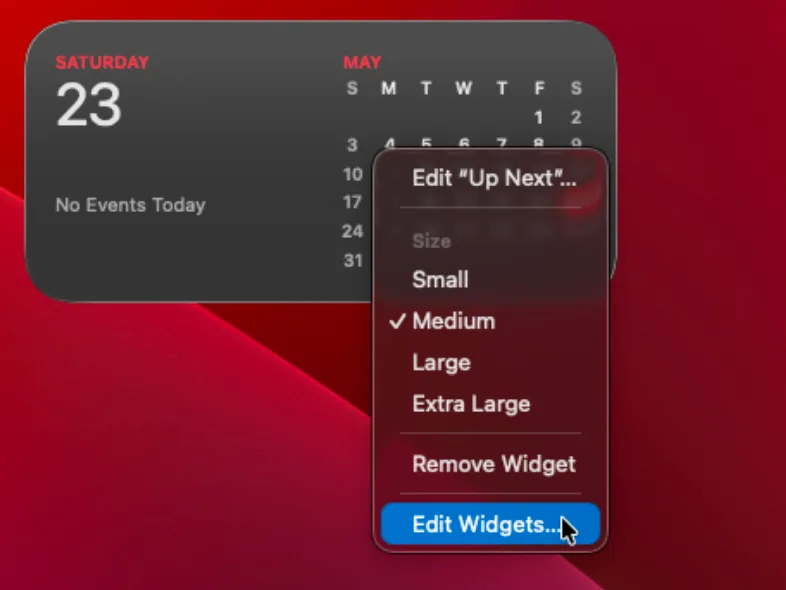
Not every widget has editable settings. If no edit option appears, that widget may only support moving, removing, or opening its app.
Move and resize widgets
To move a desktop widget, drag it to a new position. If a widget offers multiple sizes, remove the current version and add the size you want from the widget gallery.
For Notification Center, open it and use Edit Widgets when you want to add, remove, or adjust the widget stack.
Change desktop widget appearance
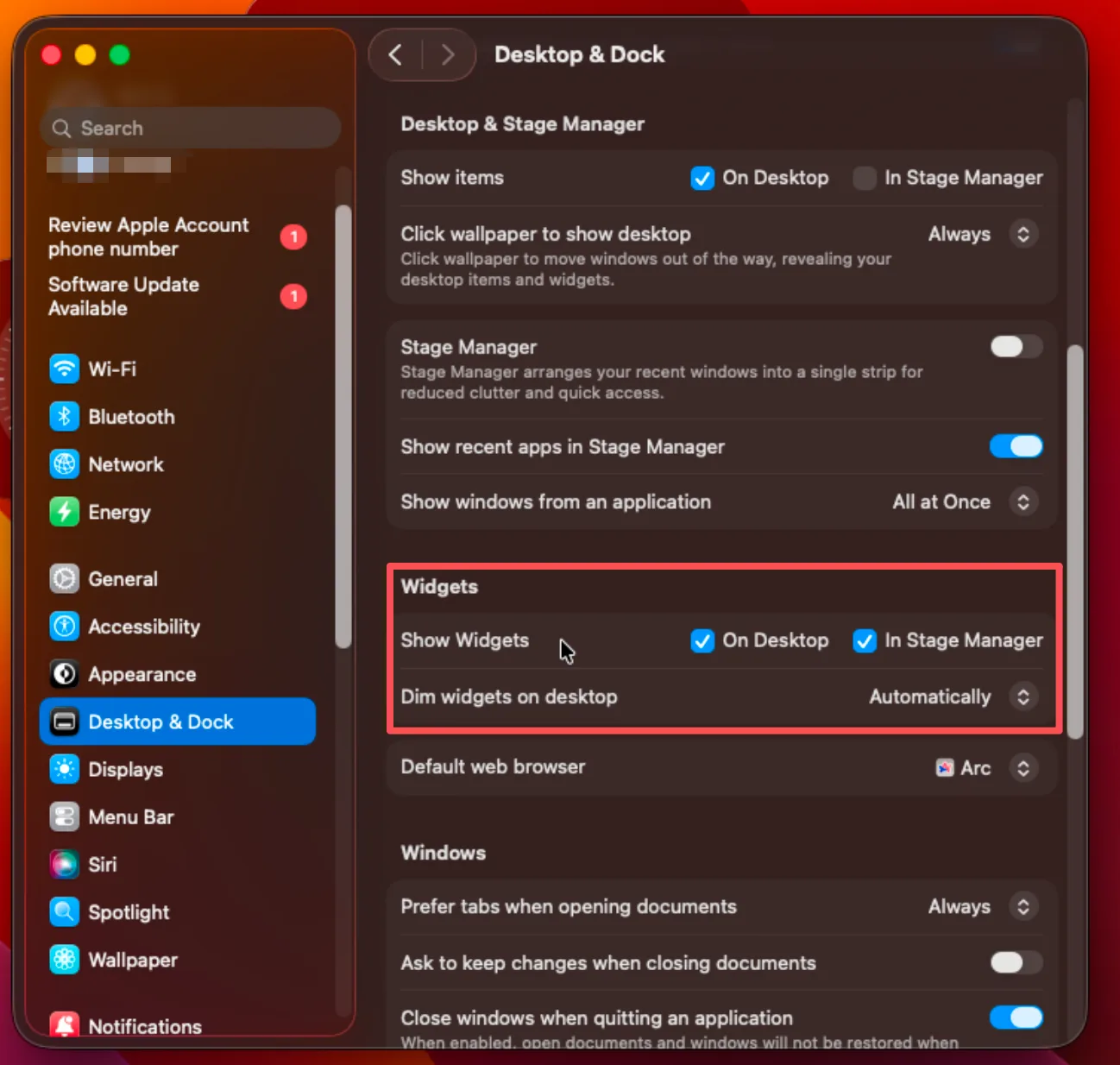
Open System Settings, go to Desktop & Dock, then review the Widgets section. You can control where widgets show and whether desktop widgets appear in color or monochrome.
Use Kepo as a Mac widget customizer
Kepo is useful when editing means more than choosing a built-in option. As a Mac widget customizer, it lets you define a source, the fields to show, the refresh behavior, and the widget layout.
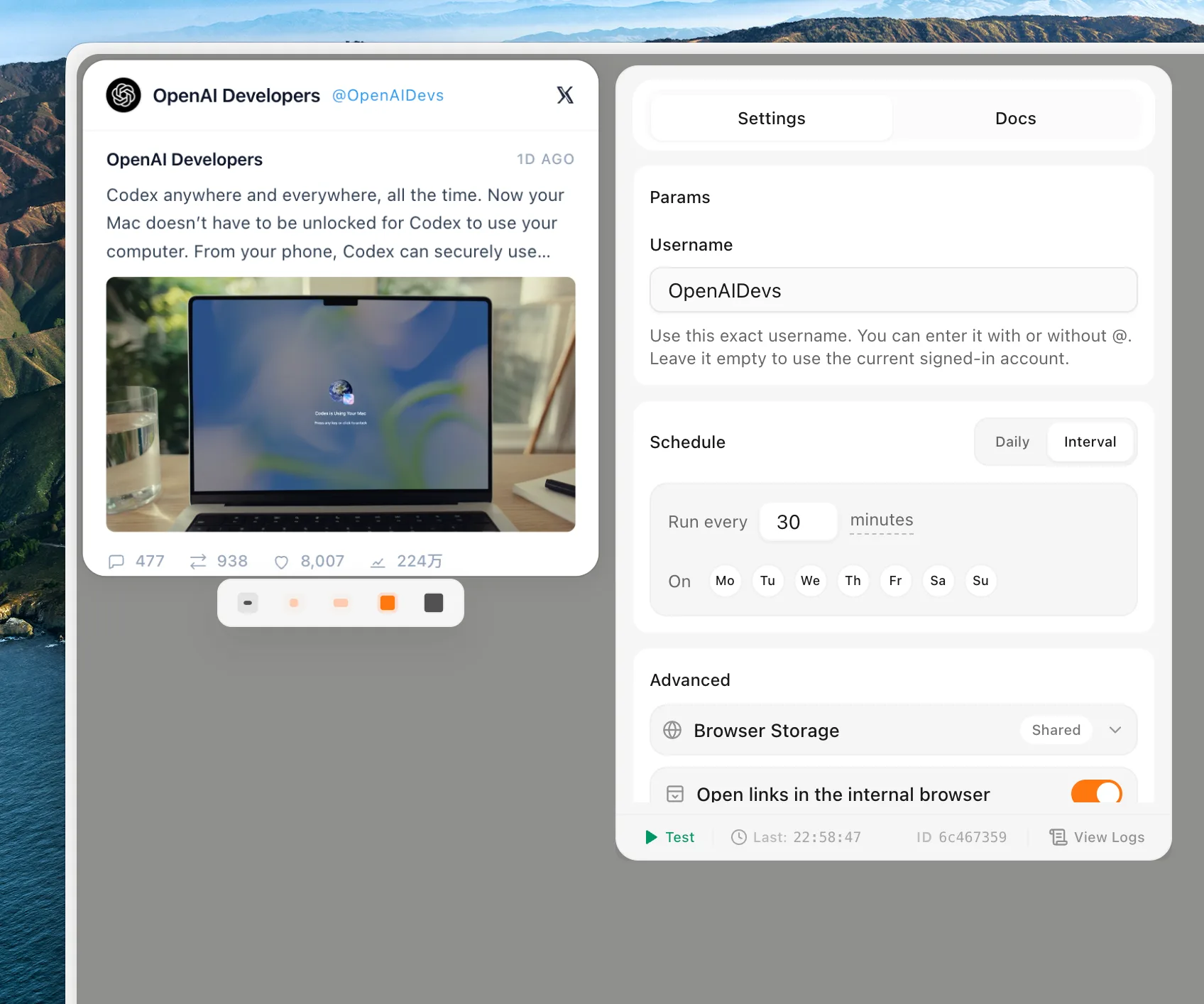
This is the better fit for a custom widget for Mac when the source is an RSS feed, website status page, GitHub check, AI text workflow, or another repeated task that does not have a native Mac widget.
Edit widgets FAQ
How do I edit a widget on Mac?
Control-click the widget and choose Edit if that widget supports editable settings.
Why does my widget not have an edit option?
Some widgets do not expose editable settings. In that case you can move it, remove it, or add a different widget size from the widget gallery.
Can I customize a widget that is not in the widget gallery?
The macOS widget gallery only includes supported app widgets. For custom sources and workflows, use a custom widget tool such as Kepo.
What is a Mac widget customizer?
A Mac widget customizer helps you adjust what a widget shows, where the data comes from, and how it appears. Kepo focuses on custom desktop widgets for feeds, websites, monitors, and workflows rather than editing Apple’s built-in widget system.
Edit built-in widgets when the built-in options are enough.
Use Kepo when the source, layout, or workflow needs to be custom.