Mac productivity widgets for repeated checks
Mac productivity is not only about faster commands. It is also about reducing the repeated checks that interrupt deep work.
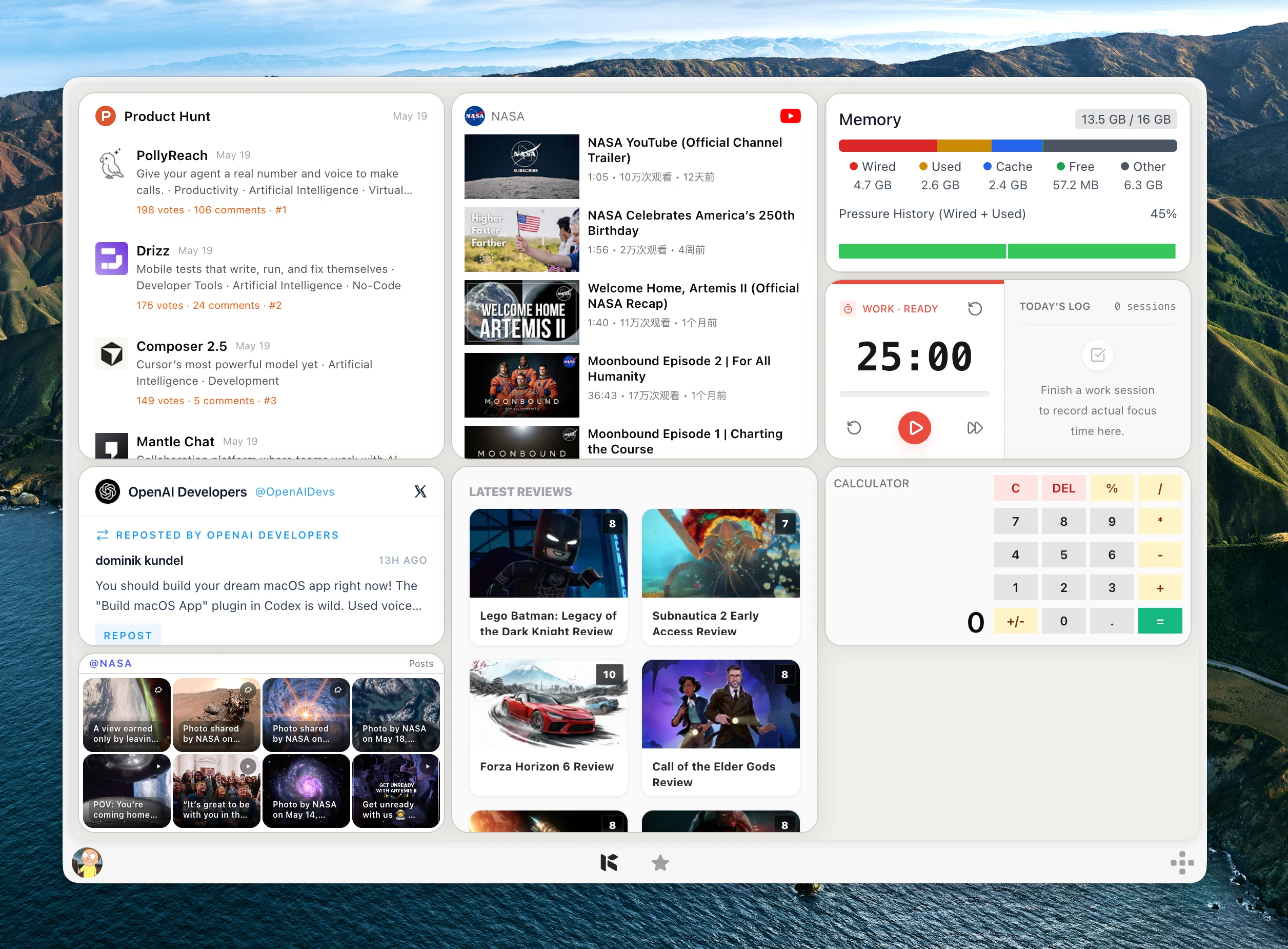
Most Mac productivity advice focuses on faster actions: launch an app, trigger a command, paste a snippet, move a window, run a shortcut, or ask an AI assistant.
Those tools are useful, but they do not solve every interruption. A lot of daily work is slowed down by repeated checks: opening the same page, scanning the same feed, checking the same repository, or refreshing the same status view just to see whether anything changed.
Kepo improves productivity by turning repeated checks into small Mac desktop widgets that stay close to your work.
Create it with Kepo AI
Kepo improves productivity by turning repeated checks into small Mac desktop widgets that stay close to your work.
Key solutions at a glance The main decisions from this guide, condensed into one table.
The productivity problem Kepo is built for
A repeated check looks small from the outside. You open a browser tab, scan a page, decide whether it matters, then switch back to your original work.
The hidden cost is attention. Even when nothing changed, the check still pulled you into another app, another tab, and another context.
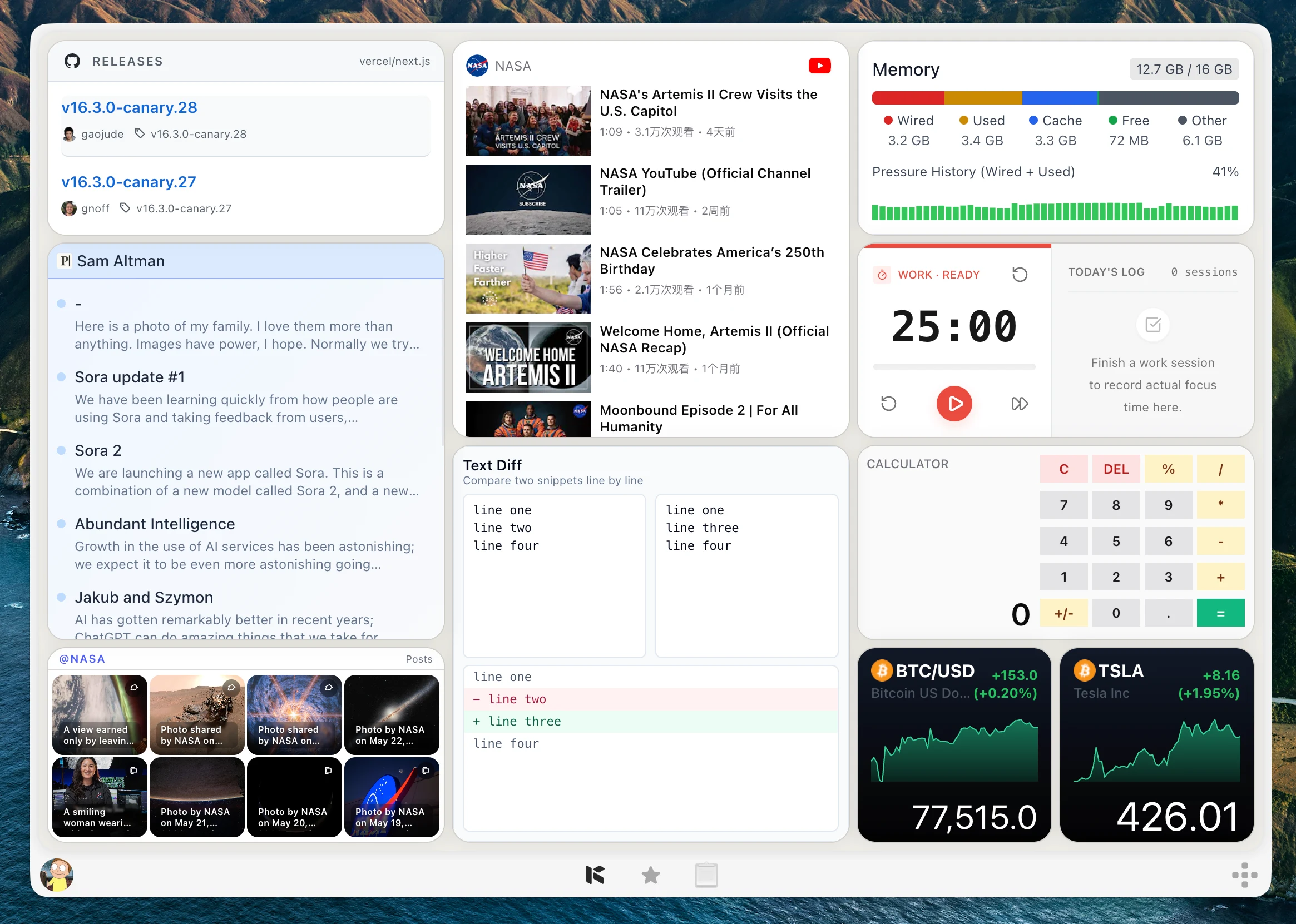
Where Kepo fits in a Mac productivity setup
Use launchers, shortcuts, and command tools when you already know the action you want to run. Use Kepo when the work starts with a source you keep checking.
That source might be one RSS feed, a GitHub repository, a website section, a Product Hunt list, a YouTube channel, a status page, a server, a task list, or a reusable AI text workflow.
The practical split is simple: command tools help you do something faster, while Kepo helps you notice whether something needs attention.
Productivity widgets that work well in Kepo
For information checks, good Kepo widgets include RSS Reader for one important feed, GitHub widgets for notifications and releases, Website Widget for page sections, Web Status for one URL, Product Hunt for launches, and YouTube widgets for channel updates or notifications.
For personal work, useful widgets include Todo List for a small daily checklist, Pomodoro Clock for focus sessions, Event Timer for deadlines, Calculator for quick arithmetic, and AI Widget for repeatable text tasks.
The best setup is usually small. Start with the checks that already interrupt you, not every widget you could possibly add.
Turn browser checks into desktop widgets
A browser is still the right place for reading, editing, research, checkout flows, admin work, and deep interaction. Kepo is for the smaller question that comes before opening the full page.
Did the feed update? Did a new release ship? Is the website still available? Did a status number change? Is there a new item worth opening? Those questions can often live in a focused widget instead of a full tab.
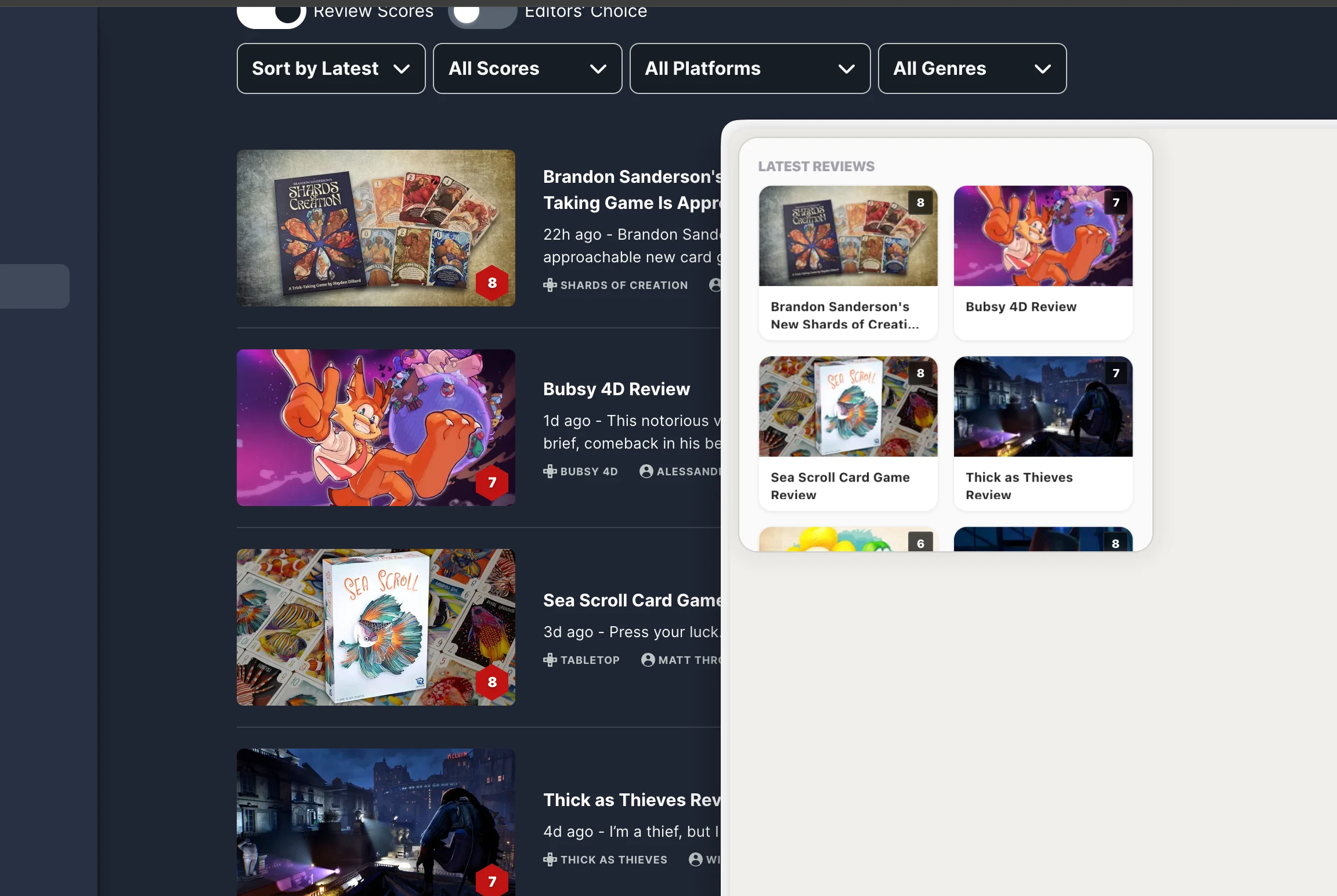
How to create a productive Kepo workspace
Start by listing the sources you check more than once a day. Remove anything that is only decorative. Then turn the remaining sources into narrow widgets with one clear job each.
Keep each widget focused: one feed, one repository, one URL, one timer, one task list, one market symbol, one prompt, or one page section. A widget that tries to become a full app usually becomes another place to manage.
Review the workspace after a few days. If a widget never changes what you do, remove it. Productivity comes from fewer unnecessary checks, not from more panels.
Mac productivity widgets FAQ
What are Mac productivity widgets?
Mac productivity widgets are small desktop views that keep useful work information close, such as feeds, tasks, timers, GitHub updates, website status, server checks, or repeatable AI text workflows.
How does Kepo improve productivity on Mac?
Kepo reduces repeated checking. Instead of reopening the same pages and tools all day, you can keep focused widgets for the sources that need quick awareness.
Is Kepo a replacement for Raycast or other launchers?
No. Launchers are best for faster commands and actions. Kepo is best for repeated checks that should stay visible as desktop widgets.
What should I put in a productivity widget?
Start with one source you already check repeatedly: a feed, website section, repository, status page, task list, timer, server, market symbol, or reusable AI prompt.
Kepo is most useful when it removes a repeated check from your day.
Use it for sources that are small enough to glance at and important enough to keep near your work.
A productive Mac workspace should help you notice what matters without pulling you away from the task you were doing.
Stay informed with Kepo on your desktop
Embed interactive widgets, monitor dynamic sites, track APIs, and run ambient AI agents right on your macOS desktop.
Related Articles
View all posts →Best macOS widgets according to Reddit: what people keep and what they miss
Reddit threads reveal two truths about Mac widgets: people keep tools that answer repeated checks at a glance, and they quickly outgrow Apple’s static built-in gallery. Here is the distilled Reddit setup and how Kepo fills the gap.
Custom Mac widgets for the sources you keep checking
Native macOS widgets are great when an app already gives you what you need. Kepo covers the rest — including the web pages and feeds people used to wish old Mac OS X widgets could handle.
Website widget for Mac
Not every website gives you RSS, a native Mac widget, or a useful notification channel. Kepo gives repeated website checks a smaller desktop surface.
RSS widget for Mac and desktop RSS ticker
An RSS reader is the right place to read and organize many feeds. An RSS widget is for a smaller job: seeing whether one important source changed.