How to Find Your IP Address on Windows
Open Settings, choose Network & internet, select the connected Wi-Fi network or Ethernet connection and read IPv4 address in its properties. That is the selected adapter’s local address. To find the public address seen by an internet service, use a separate public-IP check; the two values can legitimately differ.
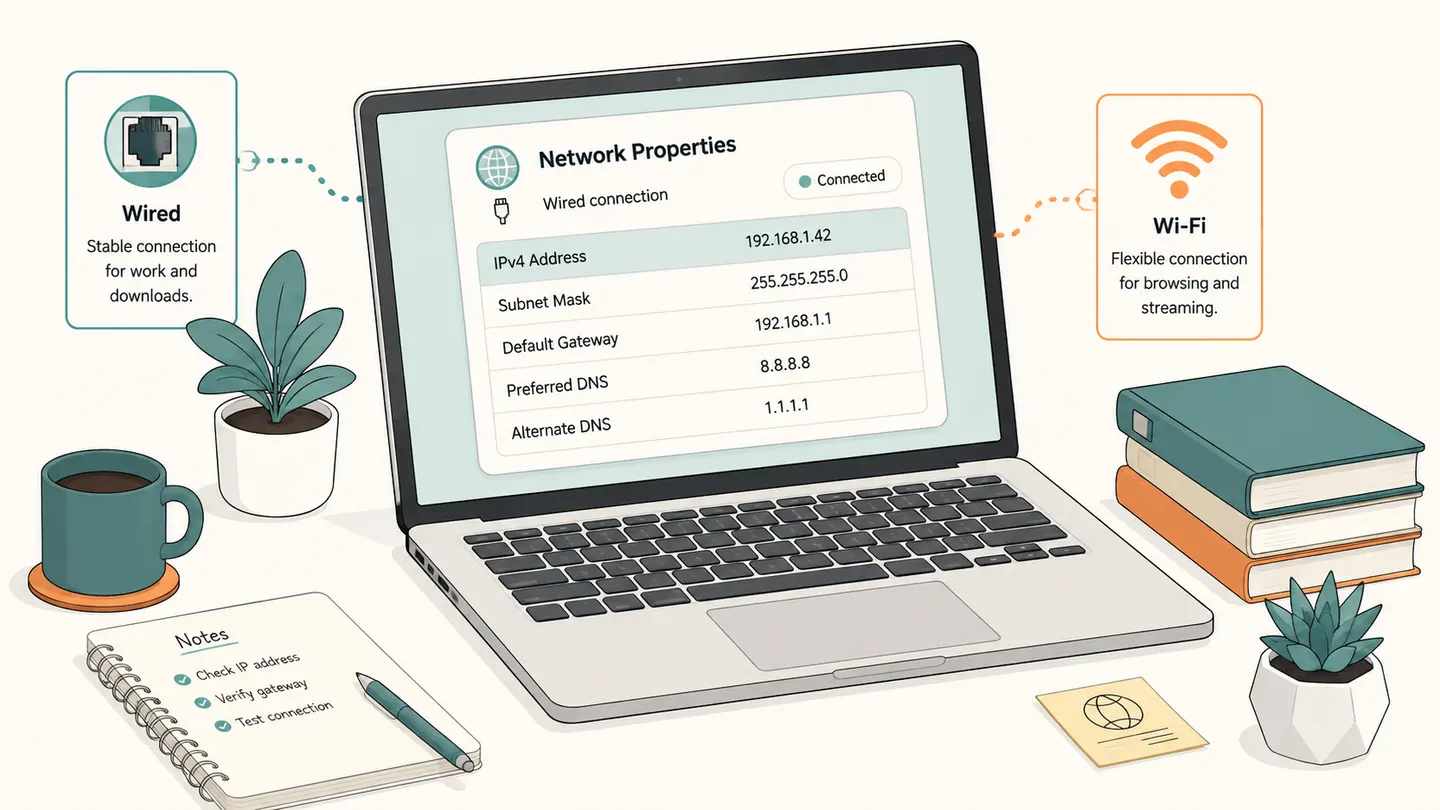
Open Settings, choose Network & internet, select the connected Wi-Fi network or Ethernet connection and read IPv4 address in its properties. That is the selected adapter’s local address. To find the public address seen by an internet service, use a separate public-IP check; the two values can legitimately differ.
Read the active device settings. A public address lookup is not a substitute for local adapter information.
Create it with Kepo AI
Read the active device settings. A public address lookup is not a substitute for local adapter information.
Key solutions at a glance The main decisions from this guide, condensed into one table.
How to Use This Guide
Choose the network whose address you need. If Wi-Fi, Ethernet and a VPN are available, confirm which one is active for the task. The how to find IP address on Windows question often becomes confusing because a machine can have several adapters and more than one valid address at once.
Open Start, Settings and Network & internet. For Wi-Fi, select Wi-Fi and then the network you are connected to. For a wired connection, select Ethernet. In the connection properties, find IPv4 address. Read the label carefully so you do not copy a DNS server or gateway value instead.
If you prefer a text view, open Command Prompt and run ipconfig. Locate the active adapter and its IPv4 Address field. Keep the adapter name beside the value when recording it. There is no need to renew the lease, disable an adapter or change IP assignment merely to view the existing information.
Decide whether the person or application asking for an address needs the local or public value. A local file-sharing task on the same network may need the adapter address. A support task concerning an external service may need the public exit address. Explain which one you are providing rather than sending an unlabeled number.
What the Result Actually Means
Windows exposes connection properties for individual adapters. A local IPv4 address identifies an interface within its network context; the address visible to an external service can instead belong to a router, shared provider exit, VPN or proxy. This is why instructions for how to find IP address on Windows should name the location and address type. The operating-system steps in this guide are distinct from a web lookup. A normal page cannot reliably enumerate all Windows adapter settings and should not pretend that an external API result came from the local settings panel.
| Field or observation | Meaning |
|---|---|
| Settings connection properties | Selected adapter’s local IPv4 |
| ipconfig | Adapter-by-adapter text view |
| Default Gateway | Router / next-hop setting |
| External public-IP tool | Internet-facing observed address |
Limits and Common Misreadings
A disconnected adapter can still appear in a command output or settings list. Do not use its presence as proof that traffic is using it. Confirm the active connection and preserve the adapter name with any copied address.
Avoid changing an automatically assigned address unless you understand the network’s configuration and have permission. Viewing settings is sufficient for this tutorial. An incorrect manual address can interrupt connectivity or conflict with another device.
This guide supports a cross-device workflow: a person may use a Windows computer alongside a Mac. Kepo’s desktop-widget product is presented as a Mac tool, not as a claim that the same desktop application or automatic Windows adapter access exists here.
An Example of Careful Interpretation: Separate the Observation from Its Cause
A Command Prompt output can contain several adapter sections. If Ethernet is disconnected while Wi-Fi is carrying your traffic, an address from the wrong section is not the right answer for the active Wi-Fi task. Compare the adapter name and connection status before copying the IPv4 field. The same habit is useful when a VPN introduces a virtual adapter. Keep the context in a short note such as device, adapter and observation time; do not publish the entire command output when another person only needs one relevant value.
Keep a Useful Troubleshooting Record
Keep the question, input, observation time and source together. A bare address, percentage or status code is difficult to interpret later because it omits the connection and measurement context. When comparing two observations, note what changed between them: the target, network, VPN state, selected adapter, record type or remote origin. Change one relevant condition at a time when possible. That makes the comparison easier to explain without inventing a cause from one number.
Save only information you actually need. Network records can reveal infrastructure names and connection details, even when they do not contain a password. Remove unrelated identifiers before sharing a screenshot with another person. Never put private credentials in a domain field or publish an internal hostname as part of a public test. A copied result is a snapshot, not a promise that the same conditions still apply when someone reads it later.
Kepo provides desktop widgets for repeated checks and everyday troubleshooting workflows. Keep fast diagnostics, network status and daily tools pinned right to your desktop for quick, glanceable access.
Choose the next task by the question you need answered.
Frequently Asked Questions
Does how to find your ip address on windows describe my entire network?
No. The steps and component above define the scope of this observation. A local adapter value, an external address and a remote probe result describe different viewpoints. Preserve that context and do not generalize a single observation to every application or connection.
What should I do when a result is unavailable?
Keep it marked unavailable. An unfinished or failed observation is not a successful zero result and does not establish the cause of a problem. Check the input and try again later only when another observation is useful. Respect provider limits rather than repeatedly retrying.
Does this page save a monitoring history or install a desktop widget?
No. The page provides the specific manual workflow described above. It does not schedule future tests or create a configured desktop widget. Save the relevant result yourself and use an explicitly supported monitoring feature if you need recurring checks.
Sources and Method
Primary references for the protocol, provider or operating-system steps.
A useful network answer states what was checked, where the observation came from and what remains unknown. Keep those distinctions when you save or share the result.
Stay informed with Kepo on your desktop
Embed interactive widgets, monitor dynamic sites, track APIs, and run ambient AI agents right on your macOS desktop.
Related Articles
View all posts →How to calculate days between dates and business days
Enter two dates to count calendar days, weekdays, and weekends. Check whether to include the end date, follow a worked example, and account separately for holidays.
How to find IP address on Mac: local vs. public IP explained
Learn how to find IP address on Mac across local network interfaces and public gateways. Master Terminal shortcuts, understand private vs. public routing, and pin live network widgets to your desktop.
How to crop an image on Mac: native tools and instant workflows
Crop an image on Mac with Preview or Photos, or try the center-crop tool on this page. Compare selection controls, aspect ratios, PNG export, and ways to preserve the original.
How to add widgets on Mac with AI-built custom widgets
A practical guide to adding widgets to the Mac desktop, using the built-in widget gallery, and creating custom widgets when the widget you need does not already exist.