macOS 27 Golden Gate Extra-Large Widgets: What They’re For (and What They’re Not)
How macOS 27 Golden Gate extra-large (landscape and portrait) widgets work, which apps support them so far, when XL helps, and when a shortcut panel beats always-on tiles.
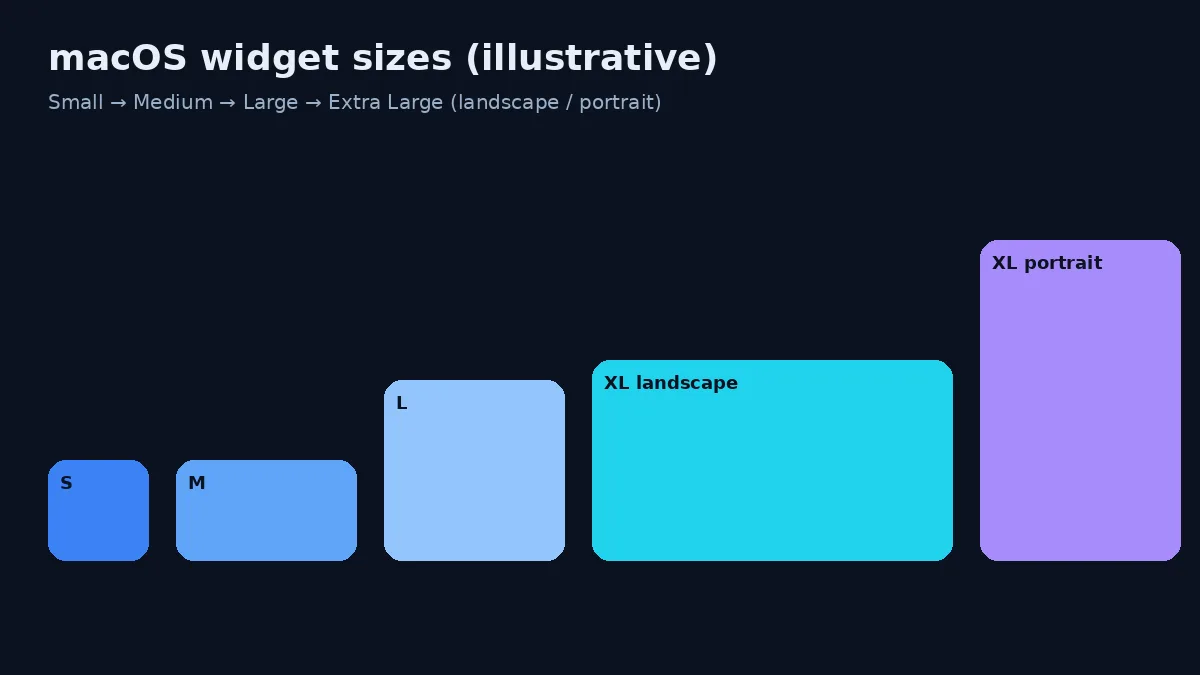
Extra-large widgets are the loudest new widget change in macOS 27 Golden Gate. Bigger tiles look impressive in screenshots. On a real Mac desktop, the question is narrower: does a larger WidgetKit surface remove a repeated check — or just spend more wallpaper?
This guide covers what Apple and early write-ups actually say about XL sizes, how to add them, when they earn the space, and where live web/RSS/API sources still need a different surface.
Create it with Kepo AI
How macOS 27 Golden Gate extra-large (landscape and portrait) widgets work, which apps support them so far, when XL helps, and when a shortcut panel beats always-on tiles.
Key solutions at a glance The main decisions from this guide, condensed into one table.
What changed in macOS 27 Golden Gate
According to iDownloadBlog’s how-to and MacRumors’ Golden Gate feature roundup, developers can ship an extra-large widget size on Mac. On the desktop you can place XL in landscape or portrait. On iPhone the XL option is portrait-only and can occupy a full Home Screen page; on iPad it is landscape-only. Platform support is not identical for every Apple app.
MacRumors also notes two related widget behaviors in Golden Gate:
- You can resize some existing desktop widgets via Control-click / right-click and choose Extra-Large or Extra-Large Portrait when the app exposes those families.
- Widgets can update in closer sync while their associated app is open, instead of waiting only on the older, more budgeted refresh cadence. Treat “real time” carefully: WidgetKit is still a scheduled, system-managed surface — not an open WebSocket for every third-party feed.
Apple’s developer materials (including WWDC26 WidgetKit sessions summarized in third-party notes) describe systemExtraLarge / systemExtraLargePortrait families. Exact availability depends on the app declaring those families. If an app only ships small/medium/large, Golden Gate will not invent an XL layout for it.
Bigger is not a new data source. Extra-large only helps when the app already owns a dense, glanceable layout worth the pixels.
How to add an extra-large widget on Mac
Steps match the usual Edit Widgets flow, with one new size choice:
- Control-click (right-click) the desktop wallpaper → Edit Widgets, or open Notification Center and choose Edit Widgets.
- Pick an app on the left that supports XL.
- Look for the largest preview cards (landscape and, when offered, portrait). There may not be a giant “Extra Large” label — size is visual.
- Click the add control, or drag the widget onto the desktop.
- If you already have a smaller widget from that app: Control-click it and choose Extra Large / Extra Large Portrait when available.
Apple’s general widget docs still apply for placement, Stage Manager visibility, and Desktop & Dock toggles such as showing widgets on the desktop vs only when you reveal the wallpaper.
Which apps support XL so far?
iDownloadBlog reported early support from a short Apple set: TV, Contacts, Calendar, Home, Files, Music, Photos, Podcasts, and Smart Stack — with the caveat that the same Apple app may not expose XL on every platform. Third-party apps will trail until developers ship updated widget extensions.
Uncertainty to mark honestly: the exact XL catalog will change as apps update after Golden Gate’s September 2026 release. Always check the widget gallery on your Mac rather than assuming a marketing screenshot still matches.
When extra-large widgets are worth the space
XL earns a permanent desktop slot when:
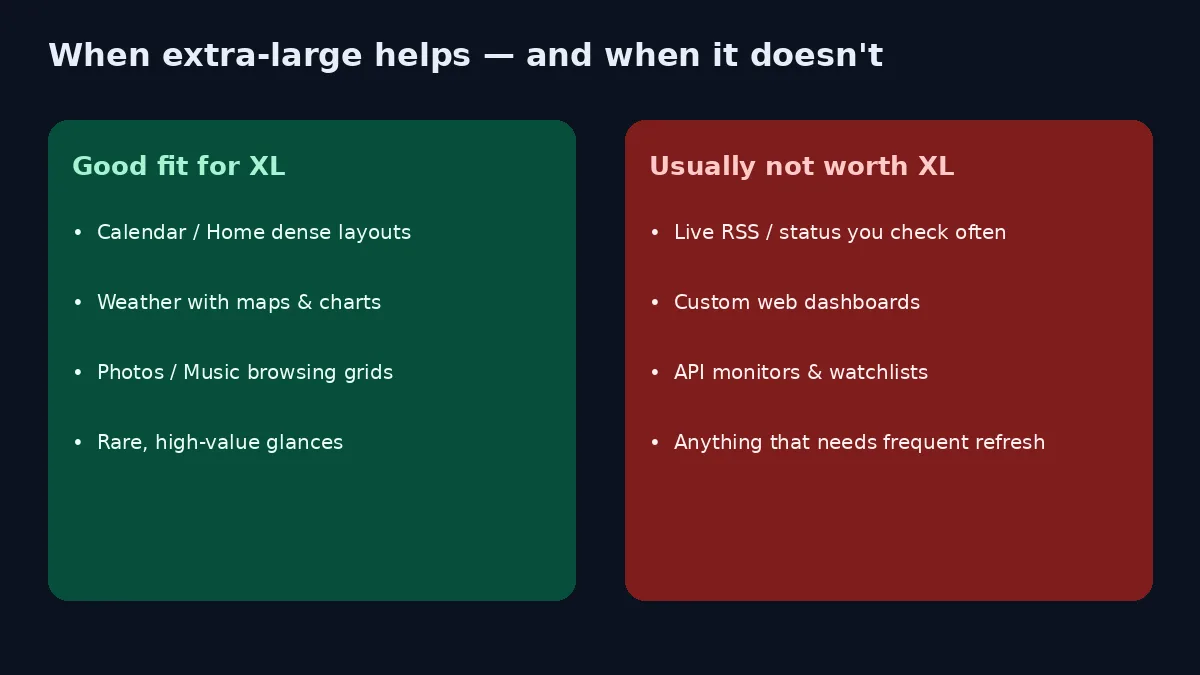
- The layout is information-dense but still glanceable (a week of Calendar, a Home room grid, a weather map plus hourly strip).
- You check it rarely enough that covering wallpaper is fine, but often enough that opening the app feels silly.
- You have monitor real estate — a large external display or a tidy Stage Manager layout — so the tile does not fight your document windows.
XL is usually a poor trade when:
- You need custom live sources (a status page, RSS list, broker dashboard, internal admin strip). Extra-large does not unlock arbitrary websites.
- Refresh cadence matters more than size. A huge Stocks or news tile that lags your real check is still the wrong tool.
- You already struggle with desktop clutter. Making the distraction larger does not fix focus.
Extra-large vs Notification Center vs a shortcut panel
Golden Gate did not remove the older surfaces. You still choose where a widget lives:
| Surface | Strength | Weakness for live sources |
|---|---|---|
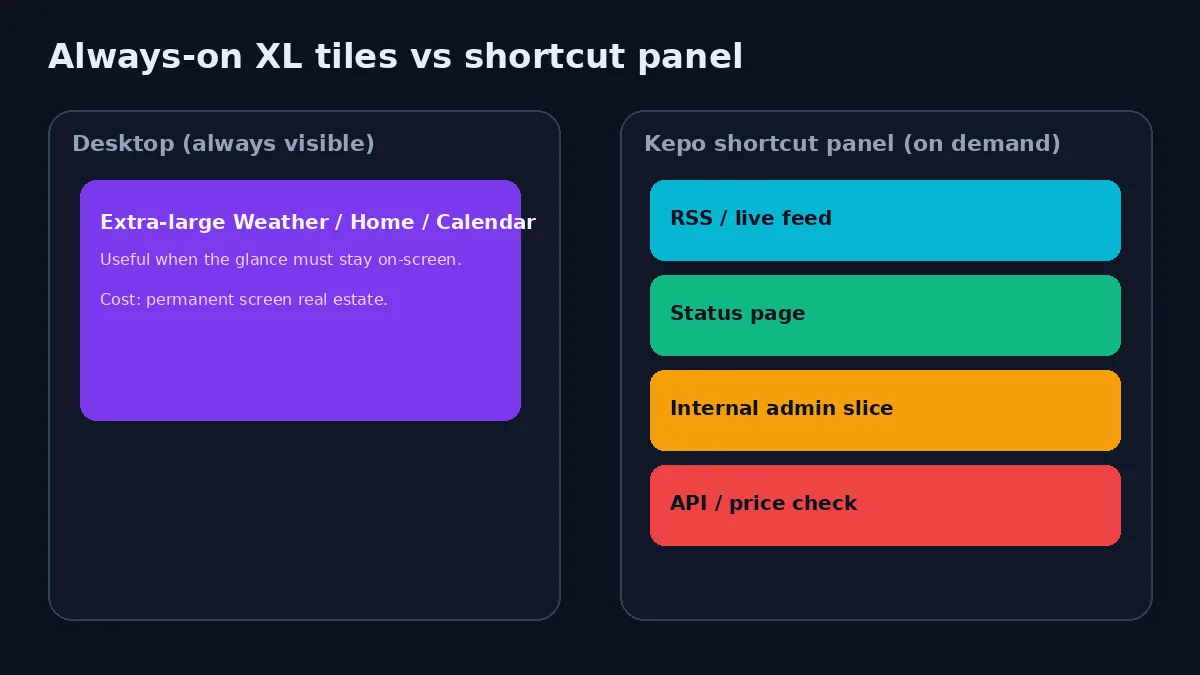
| Desktop XL WidgetKit | Dense official layouts stay visible | Only apps that ship widgets; permanent space cost |
| Notification Center | On-demand; keeps wallpaper clean | Still limited to gallery widgets; mixed with alerts |
| Shortcut panel (Kepo) | Custom web/RSS/API slices on a hotkey | Not a permanent wallpaper dashboard |
Kepo’s POV is deliberate: always-on decorative or official tiles are fine for Calendar/Weather/Home; live sources you monitor all day usually want a summonable panel so they do not colonize the desktop. Extra-large makes the first category better. It does not replace the second.
If you mainly track feeds, changelogs, and status pages, start from website widgets for Mac and RSS widgets for Mac rather than hunting for an XL layout that does not exist for those sources.
Practical setups that work on Golden Gate
Setup A — Clean laptop, occasional glances
Keep Calendar or Weather as medium/large in Notification Center. Skip XL. Add a Kepo panel for the three live checks you open every day (one RSS feed, one status page, one internal or launch list).
Setup B — Wide monitor, Stage Manager
Pin one XL Home or Calendar tile on the left desktop edge. Leave the center clear for documents. Put Stocks or Batteries in Notification Center. Use Kepo for anything that is not in the widget gallery.
Setup C — “I tried XL and it took over”
Shrink or remove XL. Prefer a keyboard shortcut to Notification Center or Kepo. Bigger widgets amplify bad placement; they rarely fix a noisy source list.
For a broader native-vs-custom map, see custom Mac widgets and the main Mac desktop widgets overview. Ready-made starting points live on free widgets for Mac.
FAQ
Does macOS 27 give every app an extra-large widget?
No. The OS adds the size families; each app must support them. Early coverage lists a small Apple set; third parties catch up on their own schedule.
Is Extra-Large Portrait the same as Extra Large?
They are related families for different orientations. Mac can show landscape and portrait XL; availability depends on what the widget extension declares. If the Control-click menu only shows one XL option, that is what the app shipped.
Do Golden Gate widgets refresh continuously?
MacRumors describes closer-to-live updates when the related app is open. Outside that, WidgetKit still uses system budgets and timelines. For continuous custom feeds, use a tool built around live sources rather than assuming XL fixed refresh.
Should I replace Kepo with extra-large widgets?
Only if native app widgets already cover your sources. XL does not turn an arbitrary website, RSS feed, or internal admin into a WidgetKit tile. Use both: Apple for official apps, Kepo for custom live checks.
Soft CTA
If Golden Gate’s XL widgets cover Calendar, Home, or Weather for you, keep them. When the next thing you check is still a browser tab — a feed, status page, changelog, or dashboard strip — put that check in a custom Mac widget inside Kepo’s shortcut panel instead of another always-on tile.
Download Kepo, start with three widgets you already reopen daily, and leave the wallpaper for the few XL tiles that truly earn the space.
Stay informed with Kepo on your desktop
Embed interactive widgets, monitor dynamic sites, track APIs, and run ambient AI agents right on your macOS desktop.
Related Articles
View all posts →How to calculate days between dates and business days
Enter two dates to count calendar days, weekdays, and weekends. Check whether to include the end date, follow a worked example, and account separately for holidays.
How to find IP address on Mac: local vs. public IP explained
Learn how to find IP address on Mac across local network interfaces and public gateways. Master Terminal shortcuts, understand private vs. public routing, and pin live network widgets to your desktop.
How to crop an image on Mac: native tools and instant workflows
Crop an image on Mac with Preview or Photos, or try the center-crop tool on this page. Compare selection controls, aspect ratios, PNG export, and ways to preserve the original.
How to add widgets on Mac with AI-built custom widgets
A practical guide to adding widgets to the Mac desktop, using the built-in widget gallery, and creating custom widgets when the widget you need does not already exist.