What Replaced Dashboard Widgets on Mac? From OS X Dashboard to Desktop Widgets
Apple's OS X Dashboard widgets were switched off by default in Yosemite and removed in macOS Catalina. Here is what replaced them, where widgets live on a Mac today, and how to get the old quick-glance overlay back.
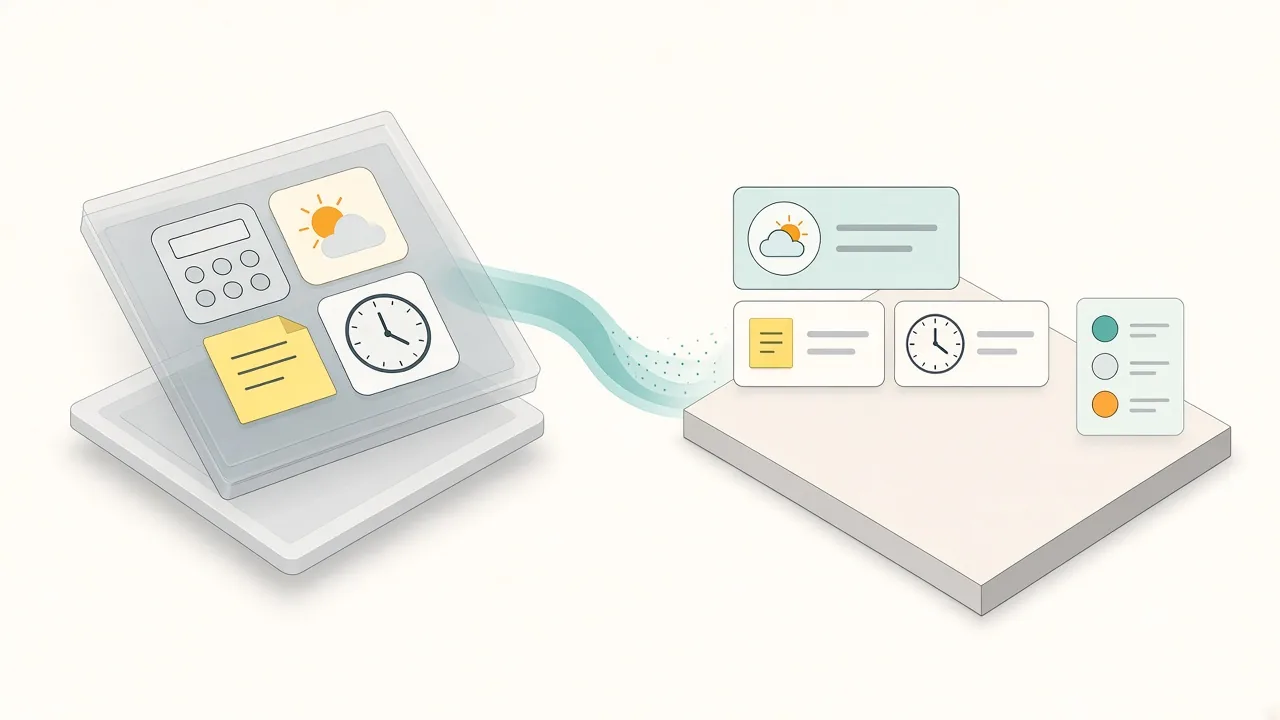
Nothing replaced Dashboard one-to-one. Apple moved widgets into Notification Center's Today view in OS X Yosemite (2014), turned Dashboard off by default, and removed it completely in macOS Catalina (2019). Since macOS Sonoma (2023), widgets can also sit on the desktop.
What none of those brought back is the part many people miss most: a layer you summon with one key, full of small widgets built from web content. For that, you need a third-party shortcut panel.
Create it with Kepo AI
Apple's OS X Dashboard widgets were switched off by default in Yosemite and removed in macOS Catalina.
Key solutions at a glance The main decisions from this guide, condensed into one table.
What OS X Dashboard actually was
Dashboard arrived in Mac OS X 10.4 Tiger in 2005. It was a separate layer: press a key (or a hot corner) and your desktop dimmed while a set of widgets slid in on top. Press it again and they disappeared.
Three details explain why people still search for "OS X widgets":
- Widgets were small web pages. Each one was HTML, CSS and JavaScript packaged as a
.wdgtbundle and rendered with WebKit, so web developers could build them easily. - You could clip the web. Mac OS X 10.5 Leopard added Web Clip: select part of a page in Safari and turn it into a live widget.
- It was instant and out of the way. One key, glance, one key, back to work.
Calculator, Weather, Stocks, Dictionary and sticky notes were the classics. Thousands of third-party widgets filled in the rest.
The timeline: where Mac widgets went
Widgets never left the Mac; they moved twice, first into Notification Center and then onto the desktop.
| Year | macOS release | What changed |
|---|---|---|
| 2005 | Mac OS X 10.4 Tiger | Dashboard introduced as a separate widget layer |
| 2007 | Mac OS X 10.5 Leopard | Web Clip turns part of any web page into a widget |
| 2014 | OS X 10.10 Yosemite | Notification Center gets a Today view with widgets; Dashboard becomes off by default |
| 2019 | macOS 10.15 Catalina | Dashboard removed |
| 2020 | macOS 11 Big Sur | Notification Center widgets redesigned in the iPhone widget style |
| 2023 | macOS 14 Sonoma | Widgets can be placed on the desktop; iPhone widgets work on the Mac |
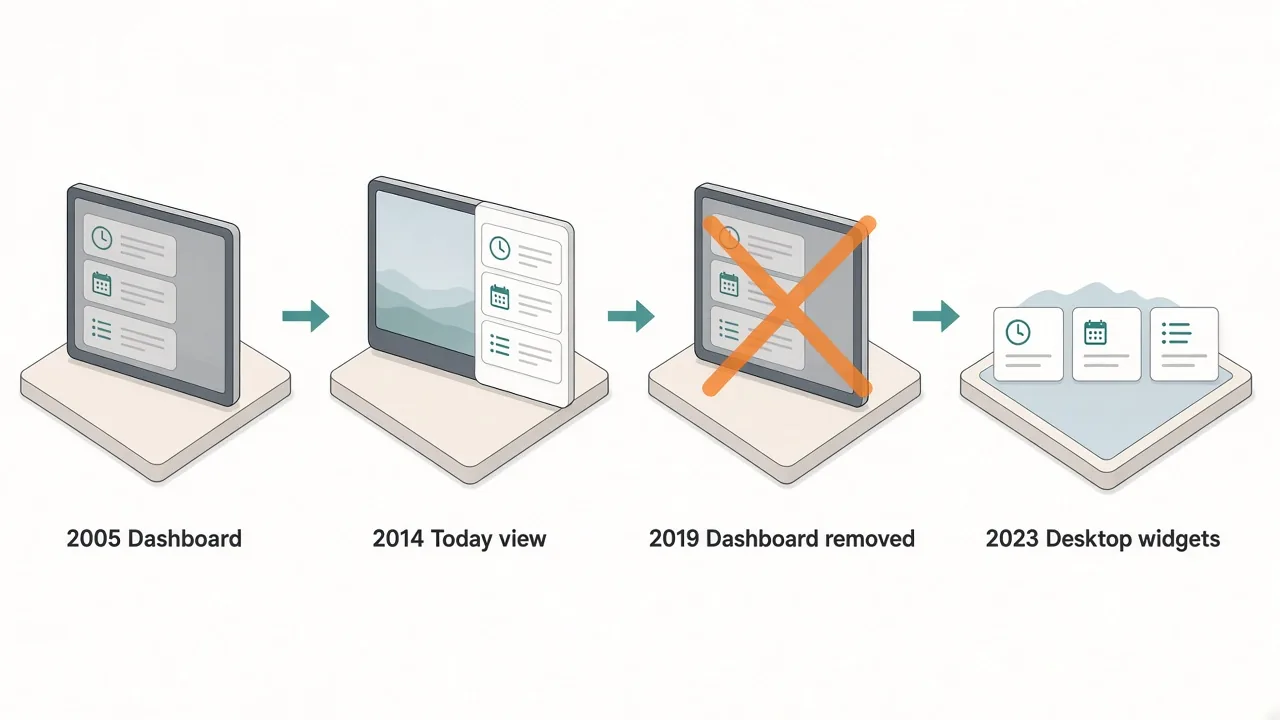
Sources: Apple's OS X Yosemite announcement describes the new Today view with widgets for Calendar, Weather, Stocks, Reminders and World Clock. Apple's macOS Sonoma press release introduces desktop widgets and iPhone widgets on Mac. The Dashboard dates follow its Wikipedia entry.
Where widgets live on a Mac today
On a current Mac you have two built-in homes for widgets:
- Notification Center. Click the date and time in the menu bar. Widgets sit above your notifications. Good for occasional glances.
- The desktop. Right-click the wallpaper and choose Edit Widgets, then drag widgets onto the desktop. They are visible when your windows are out of the way.
Both use the widget gallery, so you get only widgets that installed apps provide. Our guides on where widgets are on Mac and how to add widgets on Mac cover the steps.
The modern system is great for Apple and App Store data: Calendar, Weather, Reminders, Stocks. It is weaker at the Dashboard trick people loved most: any small piece of the web, one key away.
What the modern system does not bring back
Compared with Dashboard, today's widgets differ in three ways that matter:
- No summon key for the desktop layer. Desktop widgets are visible only when you uncover the desktop. Notification Center is a click away, but it mixes widgets with alerts.
- No Web Clip. You cannot select part of a web page and make it a widget. A widget exists only if an app ships one.
- Refresh is scheduled by the system. WidgetKit decides when widgets update, which is fine for weather but slow for a feed you watch closely.
That is why the "Dashboard replacement" question keeps coming back. The built-in answer covers the data; it does not cover the habit.
Getting the Dashboard habit back: a shortcut panel
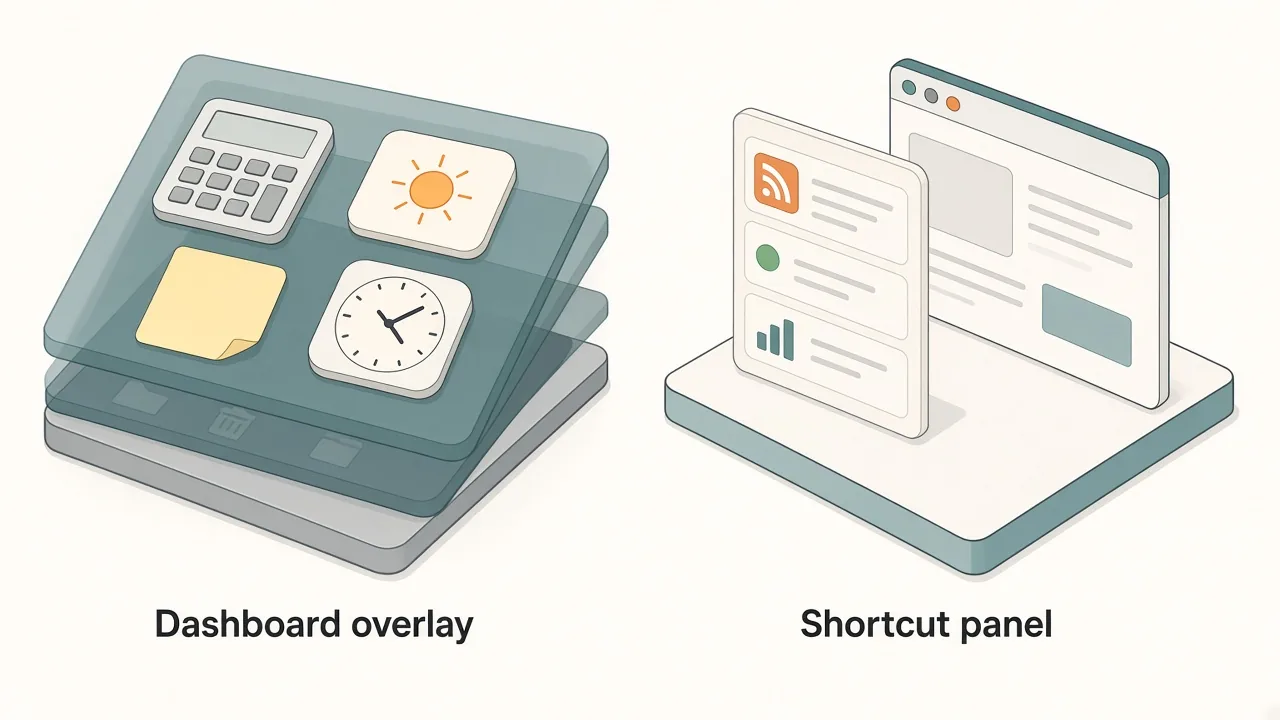
If what you miss is "one key, a few live things, one key, gone", a shortcut panel is the closest modern equivalent. Kepo works that way:
- A global keyboard shortcut opens a floating panel over whatever app you are using, including full-screen apps.
- The panel holds small widgets built from websites, RSS feeds and APIs, which is the modern version of Web Clip.
- Close it and your desktop is untouched.
A practical split many people end up with:
| Need | Best home |
|---|---|
| Calendar, Weather, Reminders | Apple widgets in Notification Center or on the desktop |
| A web page section, a feed, a status page | A website widget or RSS widget in a shortcut panel |
| Calculator, timers | A calculator widget or the built-in apps |
For more on choosing between the two Apple surfaces, see Notification Center vs desktop widgets.
FAQ
Can I still run Dashboard widgets on a new Mac?
No. Dashboard was removed in macOS Catalina (10.15). Old .wdgt files do not run on Catalina or later, and there is no Apple setting to turn Dashboard back on.
When was Dashboard turned off?
From OS X Yosemite (10.10, 2014) Dashboard was disabled by default, with Notification Center's Today view as the main home for widgets. It was removed entirely in macOS Catalina in 2019.
Are "OS X widgets" and macOS widgets the same thing?
Not technically. OS X Dashboard widgets were small HTML and JavaScript pages. Today's macOS widgets are built with Apple's WidgetKit and come from installed apps. They do a similar job but are different technology.
What is the closest thing to Web Clip today?
Apple has no built-in equivalent. Third-party tools fill the gap. Kepo, for example, turns a section of a web page, an RSS feed or an API response into a small widget you open with a shortcut.
Soft CTA
If you miss Dashboard for the quick glance, not the brushed-metal calculator, try the modern version of that habit. Download Kepo, add the two or three web checks you used to keep in Dashboard, and open them with one shortcut. Browse Mac desktop widgets to start.
Stay informed with Kepo on your desktop
Embed interactive widgets, monitor dynamic sites, track APIs, and run ambient AI agents right on your macOS desktop.
Related Articles
View all posts →How to calculate days between dates and business days
Enter two dates to count calendar days, weekdays, and weekends. Check whether to include the end date, follow a worked example, and account separately for holidays.
How to find IP address on Mac: local vs. public IP explained
Learn how to find IP address on Mac across local network interfaces and public gateways. Master Terminal shortcuts, understand private vs. public routing, and pin live network widgets to your desktop.
How to crop an image on Mac: native tools and instant workflows
Crop an image on Mac with Preview or Photos, or try the center-crop tool on this page. Compare selection controls, aspect ratios, PNG export, and ways to preserve the original.
How to add widgets on Mac with AI-built custom widgets
A practical guide to adding widgets to the Mac desktop, using the built-in widget gallery, and creating custom widgets when the widget you need does not already exist.