Turn an Internal Admin Dashboard into a Mac Desktop Widget
How to surface a slice of your internal admin or ops dashboard as a Mac widget — what belongs in a glance, auth caveats, and why a shortcut panel beats wallpaper embeds.
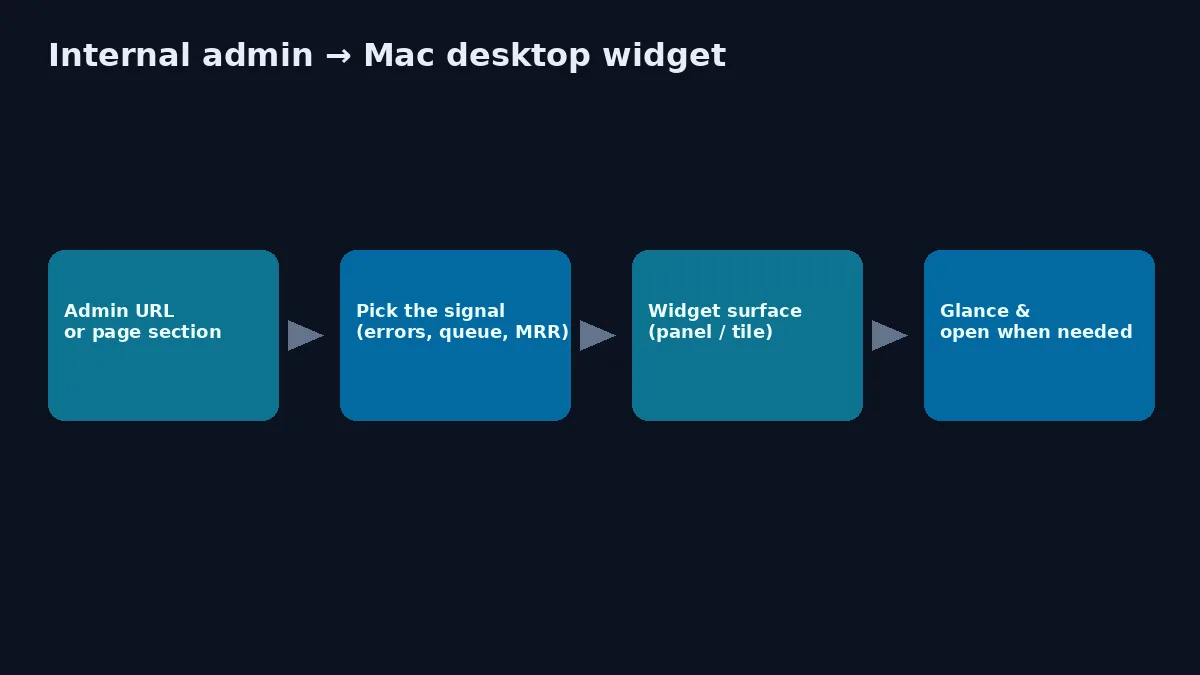
Internal admin dashboards are where the real numbers live: open incidents, deploy state, failed jobs, today’s signups, queue lag. They are also terrible always-on wallpaper. Full admin UIs want keyboard focus, permissions, and careful clicks. What most Mac-using builders actually need is a narrow strip of truth they can glance at between tasks.
Native macOS widgets will not ship your company admin. Template widget packs will not know your SSO URL. The practical path is a custom live-source widget aimed at one page section — ideally summoned from a shortcut panel rather than pinned as a permanent tile.
Create it with Kepo AI
How to surface a slice of your internal admin or ops dashboard as a Mac widget — what belongs in a glance, auth caveats, and why a shortcut panel beats wallpaper embeds.
Key solutions at a glance The main decisions from this guide, condensed into one table.
The job is a signal, not a second admin app
Kepo’s product stance (also spelled out on the homepage and in website widget for Mac): you are not shrinking the whole admin into a cute box. You are keeping the repeated check close — the same reason you might pin Grafana or a status page, but scoped harder.
Good widget jobs:
- Count of open Sev-1 / Sev-2 incidents
- Last deploy version + health
- Background queue depth or consumer lag
- Today’s MRR, trials, or error budget burn
- Uptime of the two dependencies that wake you up
Bad widget jobs:
- Editing users or refunds
- Multi-step approvals
- Dense BI with five filters
- Anything that needs dual-control or careful reading of PII
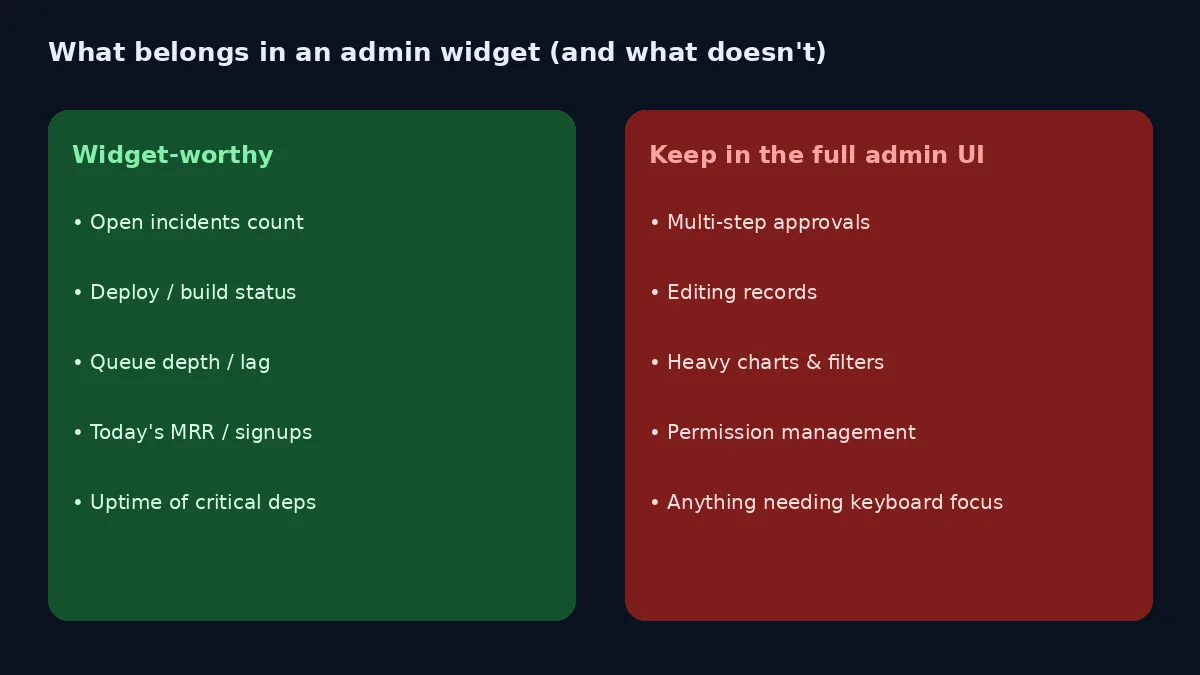
If the action requires a second confirmation in the real admin, it does not belong in a widget. Widgets are for awareness, not authority.
Why built-in Mac widgets stop short here
Apple’s gallery is excellent for Calendar, Reminders, Weather, Batteries, Stocks. It has no opinion about your /admin/ops route.
Third-party “desktop dashboard” engines can embed a full URL as an always-on tile. That works for interactive ops walls on a spare monitor. On a laptop used for coding, a live admin iframe on the wallpaper tends to:
- leak sensitive numbers to shoulder-surfers
- fight for focus with your IDE
- break when SSO sessions expire
- tempt you to click destructive controls from a tiny surface
A shortcut panel keeps the same live source one hotkey away without making your wallpaper corporate.
Compare surfaces in more depth in our Notification Center vs desktop vs panel guide once published (/blog/notification-center-vs-desktop-widgets), and the native-vs-custom map in custom Mac widgets.
A practical setup path
1. Pick one URL that already answers the glance
Prefer a read-only ops page, status board, or filtered list you open daily. If the only view is a heavy SPA, ask whether a simpler status endpoint, RSS of incidents, or public status page already exists — those make more stable widgets.
2. Name the single metric or list
Write the sentence: “I reopen admin to see ___.” If you cannot fill the blank, fix the dashboard first.
3. Create a focused website widget
In Kepo, start from that page or page section the same way you would for a changelog or status page (website widget guide). Aim for the list/table/banner — not the nav chrome.
4. Put it in the shortcut panel, not the wallpaper (default)
Summon when you context-switch. Exception: a dedicated wall display in a team room can use an always-on tile; that is a different product context.
5. Keep a deep link back to the full admin
The widget decides whether to care. The browser or native admin shell decides what to do. Some teams wrap admin in a thin native WebView app for toolbar shortcuts; that is complementary, not a replacement for a glance widget.
Auth, SSO, and privacy — mark the hard parts
Internal pages are where widget tutorials go quiet. Be explicit:
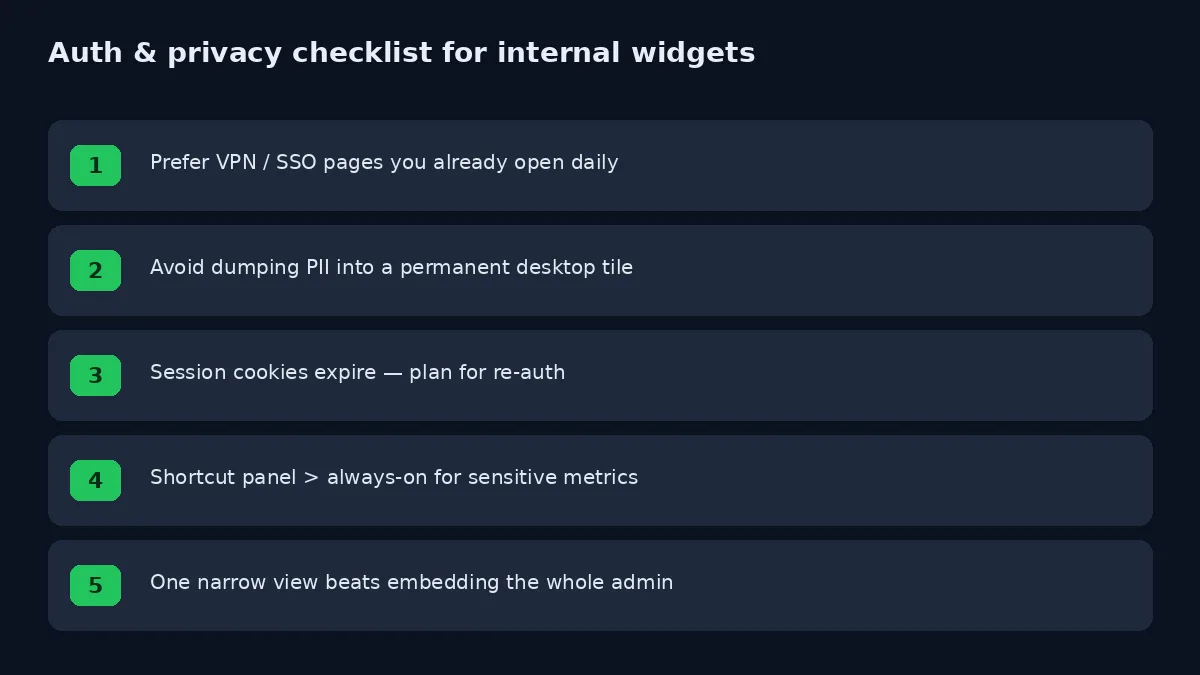
- SSO and VPN: The Mac must already be able to open the page under your normal network posture. A widget will not magically pierce a VPN you are not on.
- Sessions expire: Expect re-authentication. Plan for it instead of assuming forever cookies.
- CAPTCHA / bot defenses / device checks: May block or throttle automated refreshes. Prefer stable, accessible page areas.
- PII: Do not park customer tables on an always-visible tile. Aggregate counts beat raw rows.
- Compliance: If your company forbids local persistence of admin HTML, talk to security before rolling this out beyond your own machine.
- Uncertainty: Exact behavior with every IdP (Okta, Google, Microsoft, etc.) varies; verify on your stack rather than trusting a generic claim.
Kepo’s public positioning mentions session support for authenticated web pages and local-first operation — still treat company policy as the source of truth.
Patterns that work well
Incident strip — open incidents + acknowledgements only.
Ship light — latest production version and failing checks.
Growth pulse — today’s signups or activation count, not the whole analytics suite.
Dependency row — three vendor status endpoints you already trust (pair with public status pages via RSS when they offer feeds).
Build/CI — failed main builds; leave logs in the CI UI.
For inspiration on mixing custom sources with built-ins, see best widgets for Mac and free widgets for Mac. Building something oddly shaped? Custom Mac widgets.
Anti-patterns
- Embedding the entire admin SPA “so everything is handy”
- Duplicating the same metrics in desktop + Notification Center + menu bar + panel
- Using a widget as a stealth monitoring product for teammates without consent
- Refreshing aggressively against fragile internal pages
Example widget briefs you can copy
Use these as prompts when creating a Kepo widget so the surface stays narrow:
Incident count. “Show the open incident list from our status board: severity, title, age. Hide resolved rows. No acknowledge buttons.”
Deploy health. “Show the latest production deploy: version, time, and pass/fail of the three health checks on this page section.”
Queue depth. “Show the consumer lag number and the sparkline if present; ignore the configuration tabs.”
Signup pulse. “Show today’s signup and activation counts from the growth admin header only.”
Each brief forces a crop. If the AI or builder returns the whole nav, delete chrome until the glance fits a small card.
How this pairs with public status pages
Many teams already monitor vendor status (AWS, GitHub, Stripe, Cloudflare) separately from internal admin. Prefer an RSS widget when the vendor offers a feed; use a website widget when they only publish a status HTML page. Keep vendor status and internal incident count as two widgets — merging them into one mega-tile hides which system is actually on fire.
Rollout advice for a small team
- Pilot on your own Mac for a week with non-PII metrics.
- Document the URL, the metric, and the refresh expectation in a shared note.
- Ask security whether local session cookies for that host are acceptable.
- Only then share a how-to with teammates — still one metric per person to start.
- Revisit monthly; dashboards rot, and widgets that point at dead DOM waste trust.
FAQ
Can I turn any internal admin into a Mac widget?
Only when a clear, accessible page area answers a repeated glance. Login walls, frequently changing DOM, CAPTCHA, and strict anti-automation controls reduce reliability. Start with the simplest read-only view.
Is this the same as building a native macOS admin app?
No. A native Swift shell around your admin (as some teams do) preserves full interaction. A widget is a glance layer. Many teams want both: shell for work, widget for awareness.
Should the admin widget sit on the desktop permanently?
Default to a shortcut panel. Always-on is for dedicated displays or non-sensitive public metrics.
Soft CTA
If you already reopen the same admin URL between tasks, you do not need a bigger monitor — you need a smaller surface. Point Kepo at that page section, keep one metric honest, and summon it from the panel when you context-switch. Leave approvals and edits in the real admin where they belong.
Stay informed with Kepo on your desktop
Embed interactive widgets, monitor dynamic sites, track APIs, and run ambient AI agents right on your macOS desktop.
Related Articles
View all posts →How to calculate days between dates and business days
Enter two dates to count calendar days, weekdays, and weekends. Check whether to include the end date, follow a worked example, and account separately for holidays.
How to find IP address on Mac: local vs. public IP explained
Learn how to find IP address on Mac across local network interfaces and public gateways. Master Terminal shortcuts, understand private vs. public routing, and pin live network widgets to your desktop.
How to crop an image on Mac: native tools and instant workflows
Crop an image on Mac with Preview or Photos, or try the center-crop tool on this page. Compare selection controls, aspect ratios, PNG export, and ways to preserve the original.
How to add widgets on Mac with AI-built custom widgets
A practical guide to adding widgets to the Mac desktop, using the built-in widget gallery, and creating custom widgets when the widget you need does not already exist.