Packet Loss Test: A Remote ICMP Sample
Run a 16-packet ICMP sample from a named remote probe and inspect the sent, received and lost packet counts. This packet loss test describes the selected remote path during that short sample. It is not a browser-to-game-server test or a continuous measurement of your Wi-Fi connection.
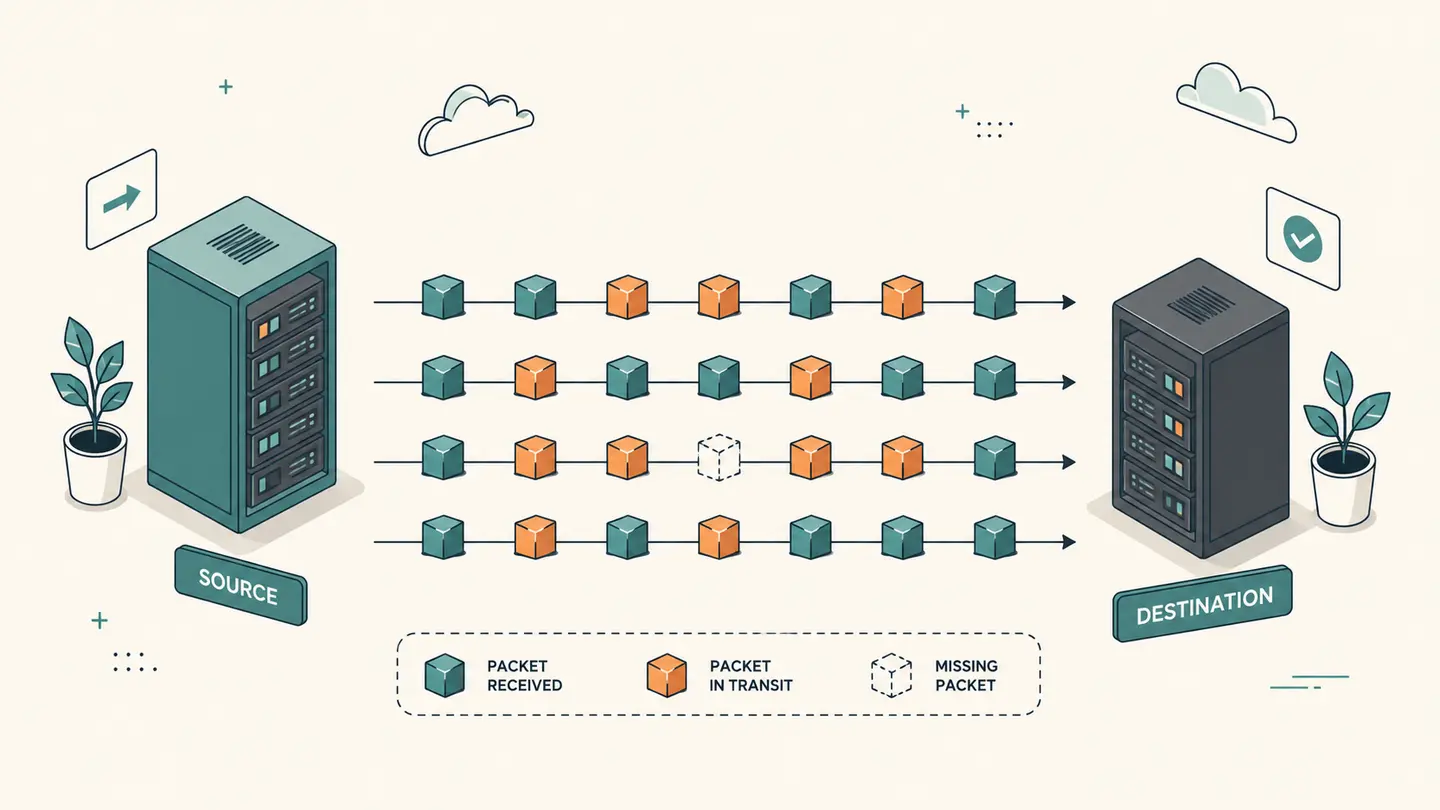
Run a 16-packet ICMP sample from a named remote probe and inspect the sent, received and lost packet counts. This packet loss test describes the selected remote path during that short sample. It is not a browser-to-game-server test or a continuous measurement of your Wi-Fi connection.
Actual ICMP replies from Globalping. Missing measurements remain unavailable, not 0%.
Best solution
Run a 16-packet ICMP sample from a named remote probe and inspect the sent, received and lost packet counts.
Actual ICMP replies from Globalping. Missing measurements remain unavailable, not 0%.
No measurement yet. This checks from Globalping probes, not from your computer. No continuous monitoring.

Opens the Kepo download page; this calculation or file is not transferred.
Key solutions at a glance The main decisions from this guide, condensed into one table.
How to Use This Check
Choose a public target you have permission to test and a probe region. Keep the path in mind: the packets originate at the remote probe, not at your laptop. If the problem occurs only on your home connection, this sample cannot directly measure that first part of the route.
Read the public-measurement consent and run one sample. Wait until the measurement finishes before treating the counters as complete. Stop waiting is available, but it stops this page’s polling; an already accepted remote measurement may still finish at the provider.
Read sent and received counts beside the percentage. With sixteen sent packets, one missing reply is 6.25 percent. That arithmetic is a description of the sample, not a prediction that 6.25 percent of all future application traffic will be lost.
Use a result to decide what to investigate next, not to assign a cause immediately. ICMP filtering, rate limits, destination behavior and transient routing can all affect replies. Compare an authorized application-level observation when the complaint concerns a call, game or website rather than ICMP echo.
What the Result Actually Means
A packet loss test estimates missing responses within a defined packet sample. The loss percentage is the missing count divided by the sent count, multiplied by one hundred. The sample size is essential: a short test changes in large steps and can easily miss intermittent issues. This tool requests a bounded ICMP sequence and reports provider statistics without filling missing values with zero. It also exposes the raw probe output so the protocol and reported failure can be checked. A successful sample does not promise that every other protocol, destination or moment will behave the same way.
| Field or observation | Meaning |
|---|---|
| 16 sent, 16 received | 0 missing in this sample |
| 16 sent, 15 received | 1 missing = 6.25% |
| 16 sent, 14 received | 2 missing = 12.5% |
| No usable counters | Unavailable, not zero loss |
Limits and Common Misreadings
Do not compare a sixteen-packet sample with a long monitoring average as if their confidence were identical. A burst problem may not occur during the short window, while one isolated missing reply has a disproportionate effect.
ICMP reply loss and application data loss are not automatically equivalent. Devices may treat diagnostic packets differently. Keep the protocol in every saved result and avoid labeling this a complete gaming or video-call quality test.
The provider limits usage. This component performs one bounded measurement, does not rotate identities or retry rejected requests, and does not run a hidden continuous test after you leave the page.
An Example of Careful Interpretation: Separate the Observation from Its Cause
Compare two hypothetical samples: sixteen packets with one missing reply, and sixteen packets with no missing replies. The first contains 6.25 percent missing replies during its window; the second contains none during its window. Neither supports a claim about the entire day. A changing result can justify a more carefully scoped investigation, but it cannot identify the failing device by itself. Save the destination, actual probe, protocol and sample time, then compare with the application symptom. Avoid averaging unlike paths into a single unlabeled percentage.
Keep a Useful Troubleshooting Record
Keep the question, input, observation time and source together. A bare address, percentage or status code is difficult to interpret later because it omits the connection and measurement context. When comparing two observations, note what changed between them: the target, network, VPN state, selected adapter, record type or remote origin. Change one relevant condition at a time when possible. That makes the comparison easier to explain without inventing a cause from one number.
Save only information you actually need. Network records can reveal infrastructure names and connection details, even when they do not contain a password. Remove unrelated identifiers before sharing a screenshot with another person. Never put private credentials in a domain field or publish an internal hostname as part of a public test. A copied result is a snapshot, not a promise that the same conditions still apply when someone reads it later.
Kepo is a Mac desktop-widget product for repeated checks and small workflows. A labeled troubleshooting note or a supported monitoring widget can keep the relevant context accessible while you work. The download link opens the product workflow; this article does not automatically install a configured diagnostic widget, transfer your network inputs or start a scheduled check. Confirm the actual widget’s capabilities before relying on it for ongoing observations.
Choose the next task by the question you need answered.
Frequently Asked Questions
Does packet loss test: a remote icmp sample describe my entire network?
No. The steps and component above define the scope of this observation. A local adapter value, an external address and a remote probe result describe different viewpoints. Preserve that context and do not generalize a single observation to every application or connection.
What should I do when a result is unavailable?
Keep it marked unavailable. An unfinished or failed observation is not a successful zero result and does not establish the cause of a problem. Check the input and try again later only when another observation is useful. Respect provider limits rather than repeatedly retrying.
Does this page save a monitoring history or install a desktop widget?
No. The page provides the specific manual workflow described above. It does not schedule future tests or create a configured desktop widget. Save the relevant result yourself and use an explicitly supported monitoring feature if you need recurring checks.
Sources and Method
Primary references for the protocol, provider or operating-system steps.
A useful network answer states what was checked, where the observation came from and what remains unknown. Keep those distinctions when you save or share the result.
Stay informed with Kepo on your desktop
Embed interactive widgets, monitor dynamic sites, track APIs, and run ambient AI agents right on your macOS desktop.
Related Articles
View all posts →Ping Test from a Remote Probe
Run a small ICMP ping test from a Globalping probe to a public domain you have permission to test. The tool sends five packets and shows returned round-trip statistics and the actual probe location. It does not send ICMP packets from your browser or measure the first Wi-Fi hop from your computer.
Is It Down? Check a Website Response
Check whether a public domain returns an HTTPS response from a remote Globalping probe. This is a single root-path HEAD request with the actual response code and probe location. It helps answer “is it down from that location now?” but does not establish a worldwide outage or test every part of a website.
TCP Port Checker
Check one TCP port on an authorized public domain from a remote Globalping probe. The port checker reports whether TCP responses were observed and retains packet statistics. A missing response is not proof that a port is closed, and this tool does not scan a range of ports or inspect your private local network.
SSL Checker: Inspect a TLS Certificate
Inspect TLS information returned by an HTTPS request from a remote probe, including the certificate subject, issuer, validity dates and probe trust result when available. This SSL checker checks the public domain’s root endpoint. It is not an exhaustive certificate-chain, cipher-suite or browser-compatibility audit.