Notification Center vs Desktop Widgets vs Shortcut Panel for Live Sources on Mac
Choose where live sources live on Mac: Notification Center, always-on desktop widgets, or a shortcut panel — matched to check frequency and source type.
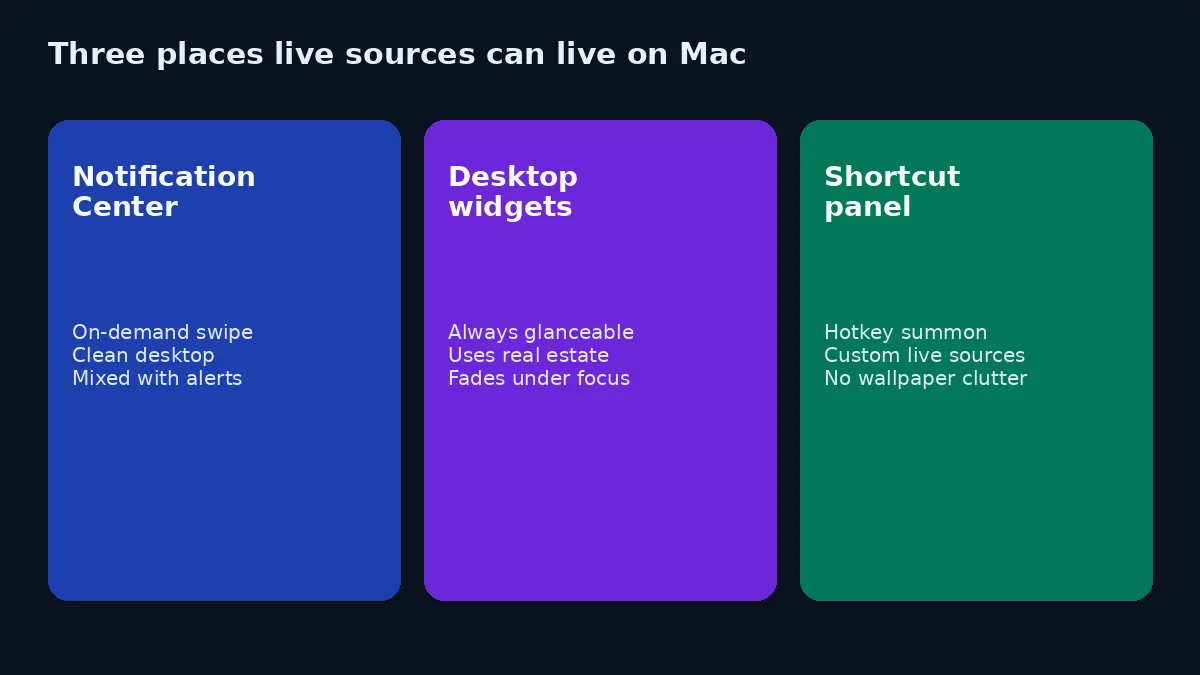
macOS gives you at least two official widget homes — Notification Center and the desktop (since Sonoma) — and third-party tools add a third pattern: a shortcut-accessible panel of custom live sources. Mac users who track many feeds, status pages, and dashboards usually fail by putting everything on the wallpaper. The fix is matching surface to check frequency and source type.
Apple’s own docs explain how to add widgets to either official place (Use widgets on your Mac desktop, Add and customize widgets). Community write-ups such as Intego’s Sonoma guide and essays like Embracing Notification Center Widgets already debate always-on vs on-demand. What they rarely cover: custom live sources that never appear in the gallery, and a panel designed for those sources.
Create it with Kepo AI
Choose where live sources live on Mac: Notification Center, always-on desktop widgets, or a shortcut panel — matched to check frequency and source type.
Key solutions at a glance The main decisions from this guide, condensed into one table.
The three surfaces, in plain language
Notification Center widgets
Open via menu-bar clock/date or a trackpad swipe (you can also bind a keyboard shortcut in Keyboard settings). Widgets sit under notifications, stay off the wallpaper, and disappear when you click away.
Strengths: clean desktop; good for intermittent glances; works while you stay in a full-screen app (swipe/shortcut instead of hunting wallpaper).
Weaknesses: mixed with notification noise; still limited to WidgetKit gallery apps; easy to ignore if you never open NC.
Desktop widgets
Sit on the wallpaper; can fade when you focus on windows; configurable in Desktop & Dock (show on desktop, Stage Manager behavior, iPhone widgets, style). Extra-large sizes in macOS 27 Golden Gate make dense official layouts more viable — see macOS 27 extra-large widgets.
Strengths: truly ambient; great for Calendar/Weather/Home on a tidy display.
Weaknesses: consumes real estate; trains you to leave gaps in window layouts (a common complaint); useless when windows always cover the desktop; still gallery-bound for data sources.
Shortcut panel (Kepo)
A dedicated panel of custom widgets — websites, RSS, APIs, status strips, internal admin slices — opened with a shortcut when you want the check, dismissed when you return to work.
Strengths: built for sources Apple does not widgetize; desktop stays clear; better default for sensitive metrics; scales to many live monitors without wallpaper sprawl.
Weaknesses: not ambient — if you never hit the shortcut, you see nothing; not a theming engine for glassmorphism desktops.
Match surface to check frequency
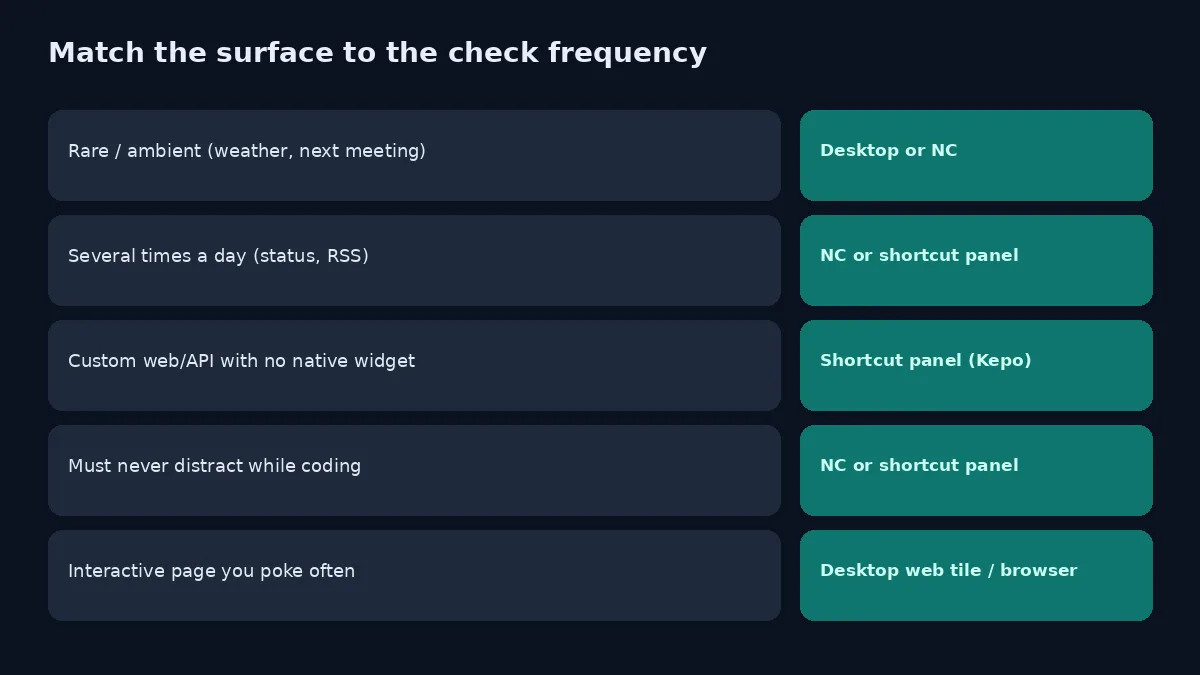
| How often you check | Source type | Prefer |
|---|---|---|
| Rare / ambient | Weather, next calendar block, batteries | Desktop or NC native widgets |
| A few times per day | Stocks watchlist, reminders | NC (or desktop on a spare display) |
| Many times per day | RSS, status pages, launch lists | Shortcut panel or NC — avoid wallpaper sprawl |
| Custom / no native widget | Website section, admin strip, API | Shortcut panel (Kepo) |
| Interactive poking | Full Grafana / broker UI | Browser window or always-on web tile — not WidgetKit |
Opinionated default for “I track many live sources”: native widgets for Apple-owned basics in Notification Center; Kepo panel for the custom swarm; zero or one desktop widget unless you have spare pixels and a calm wallpaper habit.
That default agrees with writers who abandoned desktop widgets for NC to protect focus — then extends the idea to sources NC cannot show.
Live sources change the argument
Classic debates assume the widget exists in the gallery. Live-source users break that assumption:
- A company status page has no Stocks-style widget.
- An RSS feed is not Reminders.
- An internal admin count is not Weather.
- A Product Hunt or changelog list is not Calendar.
For those, arguing desktop vs NC is rearranging empty chairs. You need a custom surface first — then decide if it should be always-on (usually no) or on-demand (usually yes). Kepo’s write-ups on website widgets and RSS widgets start from that gap. Always-on engines (WidgetGrid-style) are the other custom path when you truly want wallpaper dashboards — compared in WidgetGrid vs live-source widgets.
Suggested stacks
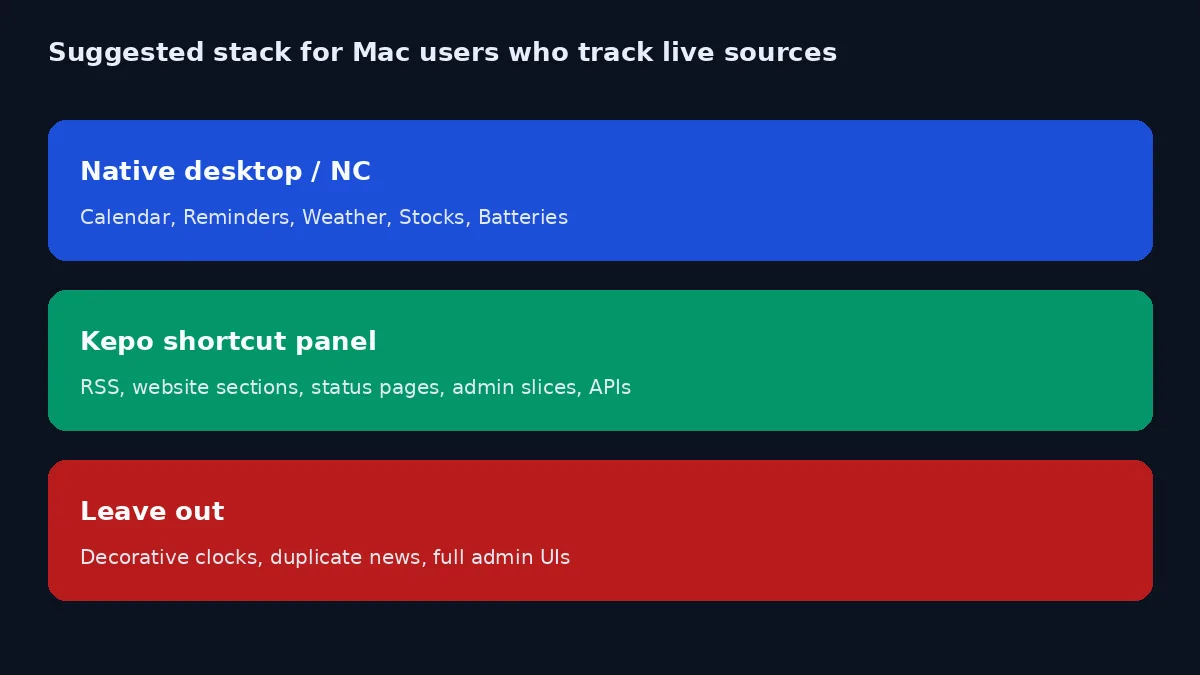
Laptop, focus-first
NC: Calendar, Batteries, one Stocks watchlist.
Desktop: empty.
Kepo: 3–5 live sources (RSS, status, one website list, optional admin strip).
Studio display / spare monitor
Desktop: one XL Calendar or Home (Golden Gate).
NC: Reminders + Weather.
Kepo: custom monitors on the laptop screen’s shortcut, not duplicated on the wall.
Ops wall
Always-on web tiles or a browser kiosk for interactive boards.
Kepo on the working Mac for personal checks.
Do not mirror PII-rich admin on the wall.
More starting points: best widgets for Mac, Mac desktop widgets, free widgets for Mac, custom Mac widgets.
How to rebalance an existing messy setup
- List every widget and tab you reopen daily.
- Delete decorative duplicates (second clock, third news tile).
- Move Apple-owned widgets you still want into Notification Center.
- Remove desktop widgets that hide under windows all day — they are ornaments.
- Create Kepo widgets only for leftover live sources with a one-sentence job.
- Bind a shortcut you will actually use (NC and/or Kepo).
- Revisit in a week; delete anything you did not glance at.
Keyboard and Focus Mode details worth setting once
- Bind Notification Center to a shortcut you can hit without looking (System Settings → Keyboard → Keyboard Shortcuts). Himmelwright-style workflows often use something near the home row.
- Bind Kepo to a different shortcut so NC stays for Apple widgets and the panel stays for custom live sources — colliding shortcuts trains you to open the wrong surface.
- Use Focus modes to silence notification banners while still allowing a manual NC glance. Widgets in NC do not require accepting every banner.
- In Desktop & Dock, decide whether desktop widgets show always or only when you click the wallpaper. If you work full screen, “always” desktop widgets rarely earn their keep.
What changes when you add Stage Manager
Stage Manager makes a strip of desktop edge more visible, which is why Apple and reviewers often pair it with desktop widgets. That helps Calendar/Weather. It does not magically make five custom website tiles a good idea — Stage Manager already spends attention on app thumbnails. Prefer NC + Kepo when Stage Manager is on, and reserve desktop widgets for one ambient official tile.
Migrating from “Dashboard nostalgia”
People searching for old Mac OS X Dashboard habits usually want a quick overlay, not permanent chrome. Notification Center and a shortcut panel are closer to that muscle memory than wallpaper tiles. Kepo’s Mac widgets piece covers the Dashboard analogy without pretending the old runtime still exists. Use nostalgia as a clue: you want summonable glances for modern web sources.
FAQ
Are desktop widgets “better” than Notification Center?
Not universally. Desktop wins for ambient glances on a visible wallpaper. NC wins for focus and full-screen work. Neither wins for arbitrary live websites — that is a different category.
Can I use iPhone widgets on Mac in these surfaces?
Apple supports showing iPhone widgets on Mac when Continuity conditions are met (toggle in Desktop & Dock). They still will not cover your internal admin URL.
Does macOS 27 change this advice?
Extra-large desktop widgets and closer updates while an app is open (per early Golden Gate coverage) improve official widgets. They do not replace custom live-source panels.
Soft CTA
If your wallpaper is a graveyard of tiles you never see, move the Apple basics to Notification Center and put the real live sources — feeds, status pages, site sections, admin strips — into a Kepo shortcut panel. Glance on purpose, then get back to the work those sources are supposed to protect.
Stay informed with Kepo on your desktop
Embed interactive widgets, monitor dynamic sites, track APIs, and run ambient AI agents right on your macOS desktop.
Related Articles
View all posts →Best RSS readers for Mac: reader apps vs desktop RSS ticker widgets
The best RSS setup for Mac depends on whether you want to read many feeds or keep a few work signals visible on your desktop.
Kepo vs macOS widgets: custom AI widgets for Mac
The macOS widget gallery is the right place to start, but it can only show widgets that supported apps already provide.
Kepo vs Raycast: Mac desktop widgets vs command launcher
Raycast and Kepo both reduce context switching on Mac, but they solve different parts of the workflow.
Kepo vs browser tab managers: AI widgets instead of more tabs
Tab managers and desktop widgets both reduce browser clutter, but they do it from opposite directions.